
When using Forms authentication Password management allows administrators to set up password complexity rules in order to obtain more secure logins for users of Gimmal Physical.
To manage login preferences and password complexity:
-
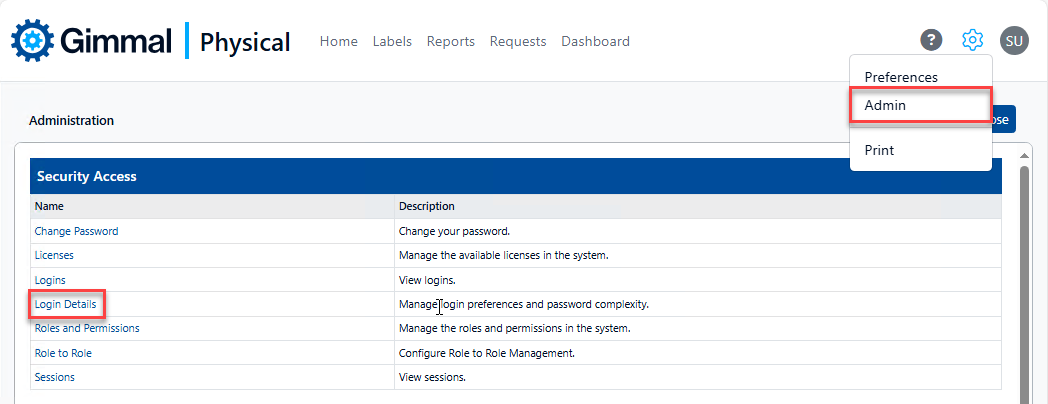
Click the Admin link in the gear icon.
-
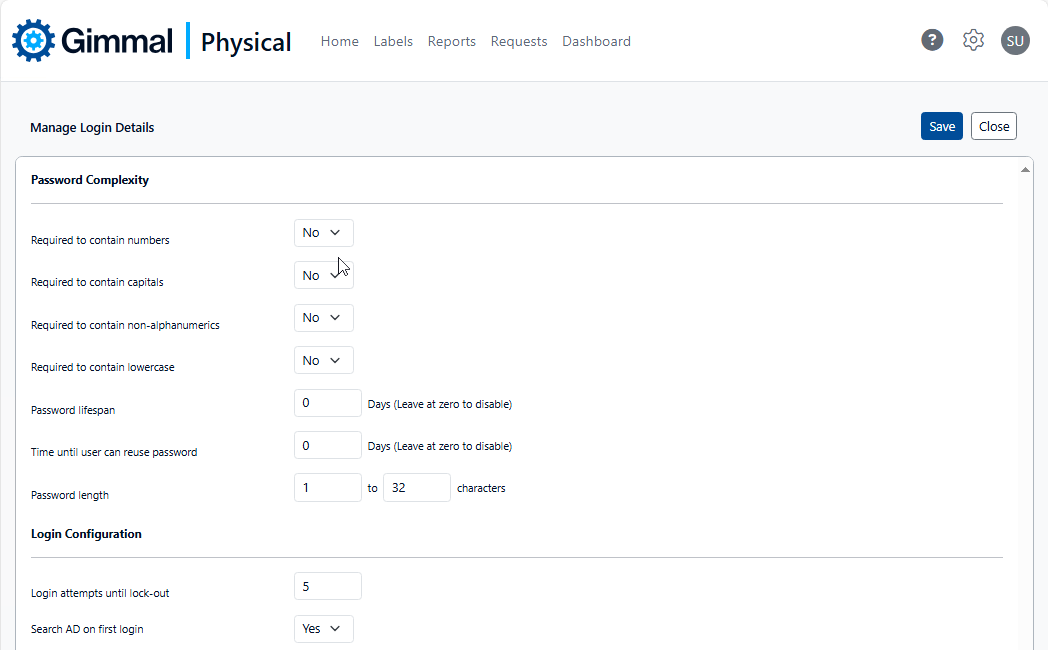
Click Login Details in the Security Access section to display the Manage Login Details.
-
The Password Complexity section only applies to accounts using Forms authentication (i.e. those that require a password in the application itself).
-
Required to contain numbers - Setting to Yes forces account passwords to contain digits, i.e. 1, 2, 3…
-
Required to contain capitals - Setting to Yes forces account passwords to contain capital letters, i.e. A, B, C…
-
Required to contain non-alphanumerics - Setting to Yes forces account passwords to contain special characters, i.e. !, $, &…
-
Required to contain lowercase - Setting to Yes forces account passwords to contain lowercase letters, i.e. a, b, c…
-
Password lifespan - Number of days until password must be reset. Set to zero for password to never expire.
-
Time until user can reuse password - Number of days until a password can be reused.
-
Password length - enforce minimum and maximum length requirements of account passwords.
-
-
Login attempts until lock-out - Number of failed logins allowed before a user is locked out from the application. With Forms authentication this is usually due to incorrect passwords. With SSO authentication, using the incorrect role name can cause a failed login.
-
To unlock a user, uncheck the account’s Login Disabled property in the application.
-
-
Search AD on first login - Applicable only when Windows AD is used for SSO.