
When certain events happen within Gimmal Physical, it can alert users via email notifications. Configuring these notifications is described below.
To configure a notification click on the Admin navigation link and then click on the Configure Notification link.
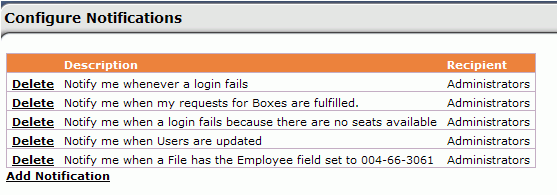
On the ensuing Configure Notifications page as shown above in the screen shot, click on the 'Add Notification' link to add a new notification.
-
The first step in creating a new notification is to specify the type of event that will trigger this notification. Choose the desired event from the drop down list.
-
The recipient of the notification is user group (i.e. security role) specific. Choose the desired security role from the drop down list.

-
You can add a notification event here by clicking on the ‘Add Notification Event’ link.

-
Click save to save your configured notification. Notice the newly configured notification has been added to the list.
-
The grid below displays actions that cause a notification to be sent and who will receive the notification. The email notification will only be received by those users who are assigned to the specified security role.
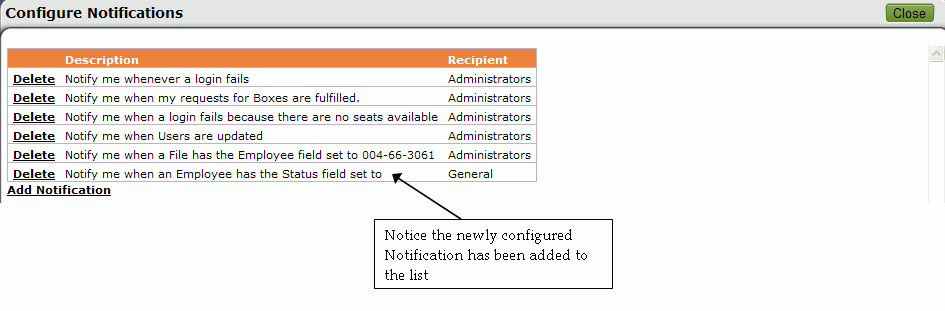
To Delete any configured notification click the 'Delete' link on the left of the configured notification description from the list.
Broadcast Notifications Read this topic to learn more about email notification.
Return to Notifications Info.