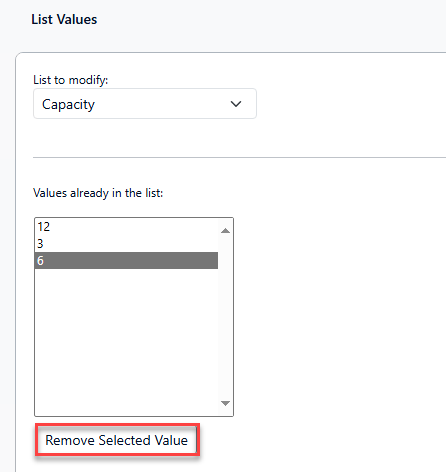
Adding, removing, or editing the available values shown in simple drop-down list fields can be done directly in the application by any User with the Manage List Values permission enabled.
To update the available values for a drop-down list field, complete the following steps.
-
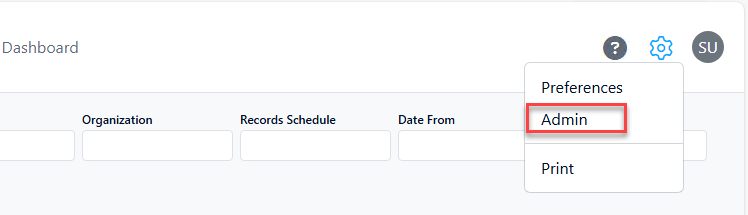
Select the Admin option in the gear menu to display the Administration page.
-
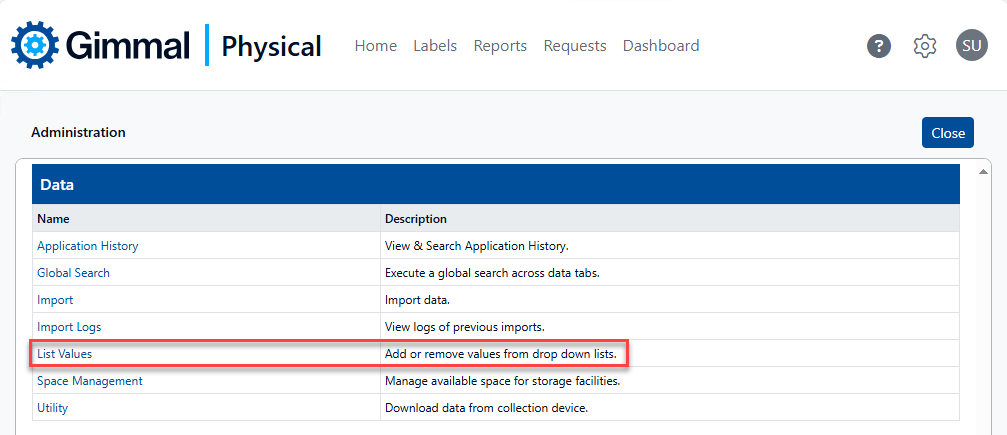
Click List Values in the Data section. The List Values page displays.
-
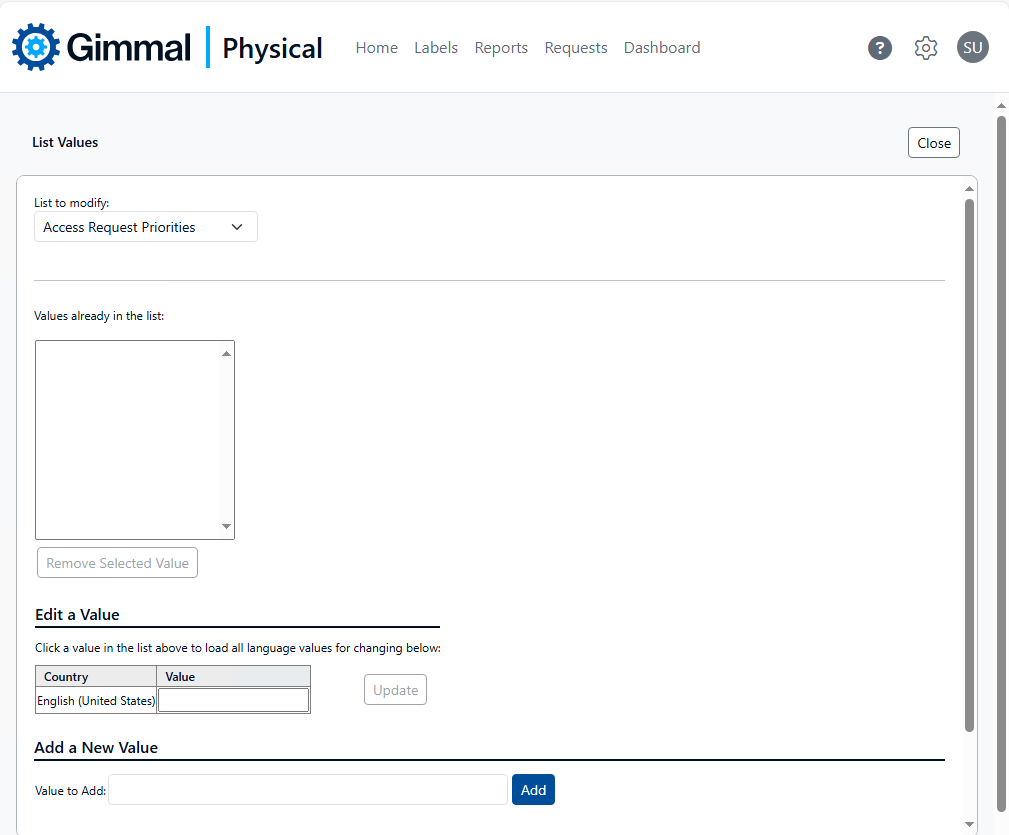
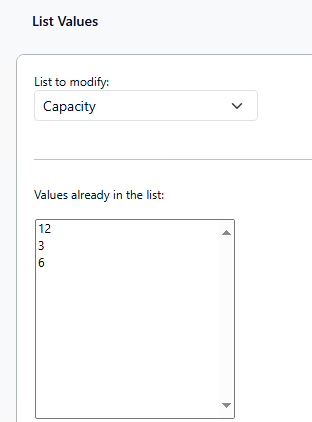
Select the appropriate list from the List to modify drop-down selection. The values already in the list will populate automatically.
Add a Value
-
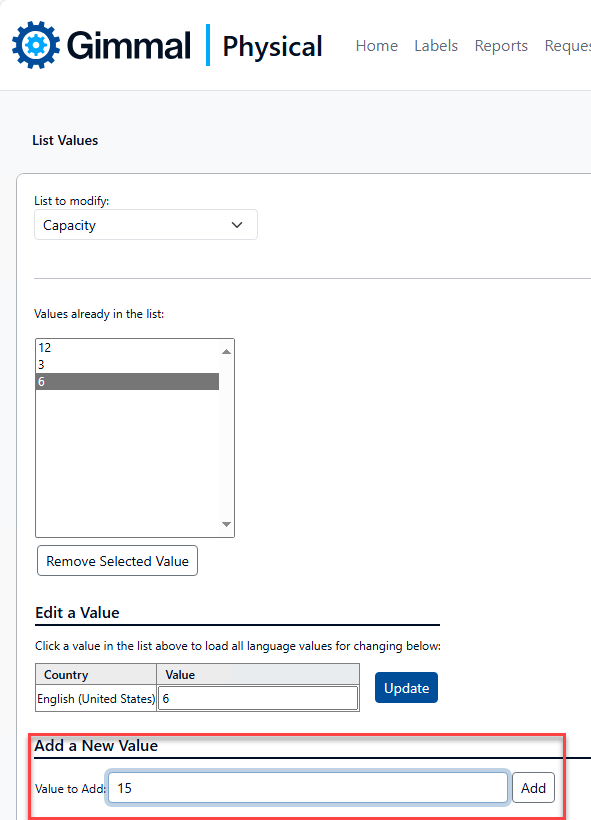
To add a new value, enter the desired value in the Value to Add text box. Then click Add.
Edit a Value
-
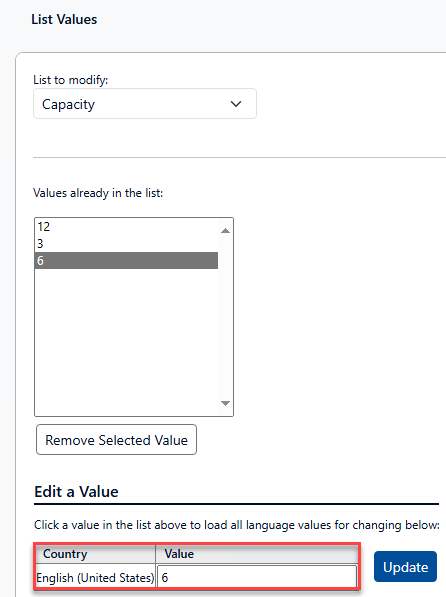
To change an existing value, select it first. It will then automatically appear in the Edit a Value section.
-
Update the value as desired then click Update.
Remove a Value
-
To remove an existing value, select it first, then click Remove.
Gimmal Physical will not allow you to remove any values currently used by any items within the application.