
Configuring security using Secured Lists, requires two steps:
-
A simple drop-down list field must be made secure
-
List Security configurations (i.e. what actions are allowed for the drop-down values) must be configured for Roles or individual Users
Create Secured List
Creating a Secured List requires the engagement of our Professional Services team. Reach out to your Gimmal Account Manager or Gimmal Support for more information.
Setting the Is Secure attribute for the field in Field Display - Advanced does NOT make it a Secured List. Configuring a list field as both Is Secure and a Secured List is not supported.
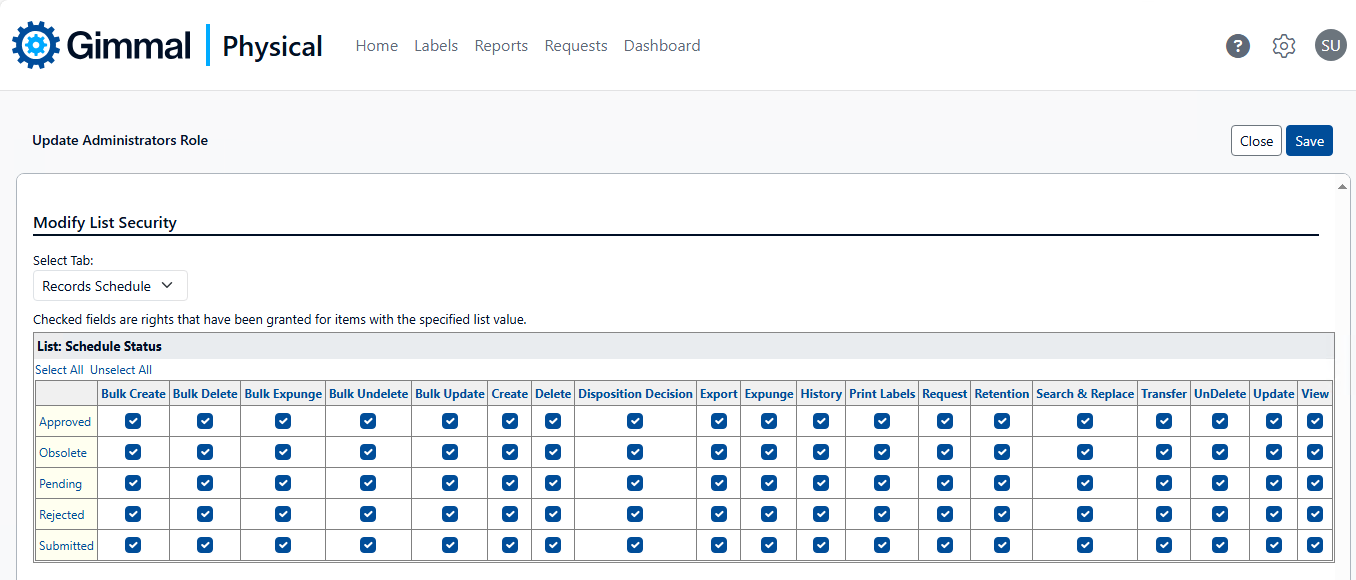
List fields configured as Secured Lists will automatically be available in the List Security configuration.
Configure List Security
Role
To configure List Security for a role, on the Update Role page, check the View right of the secured list field. Checking the View right of the specified secured list value, grants a permission to view it.
User
To grant additional security to an individual user in addition to the security granted to the role, on the Update a User page, check the View right of another secured list field.