
Role to Role Management enables the configuration of role administrators, specifying which of the application’s roles a specific role can manage.
To configure Role to Role Management:
-
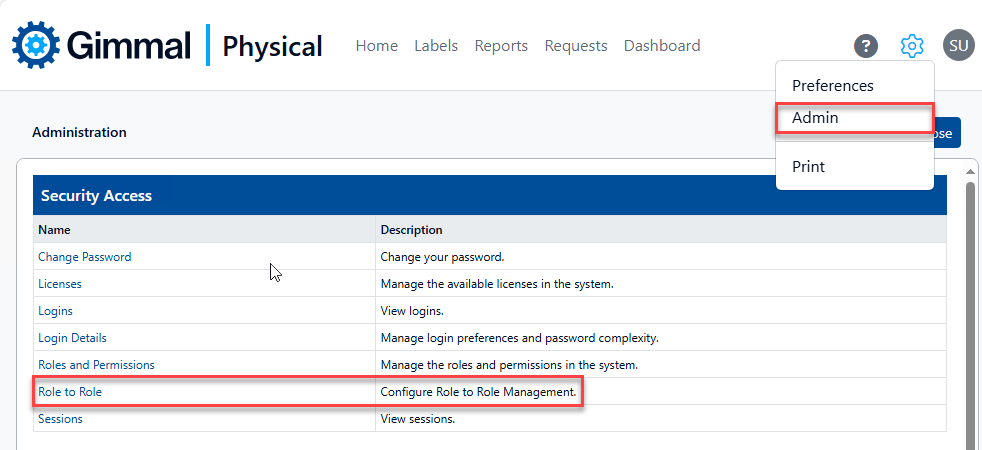
Browse to the Admin page via the gear icon, then click Role to Role in the Security Access section to display the Role to Role Management page.
-
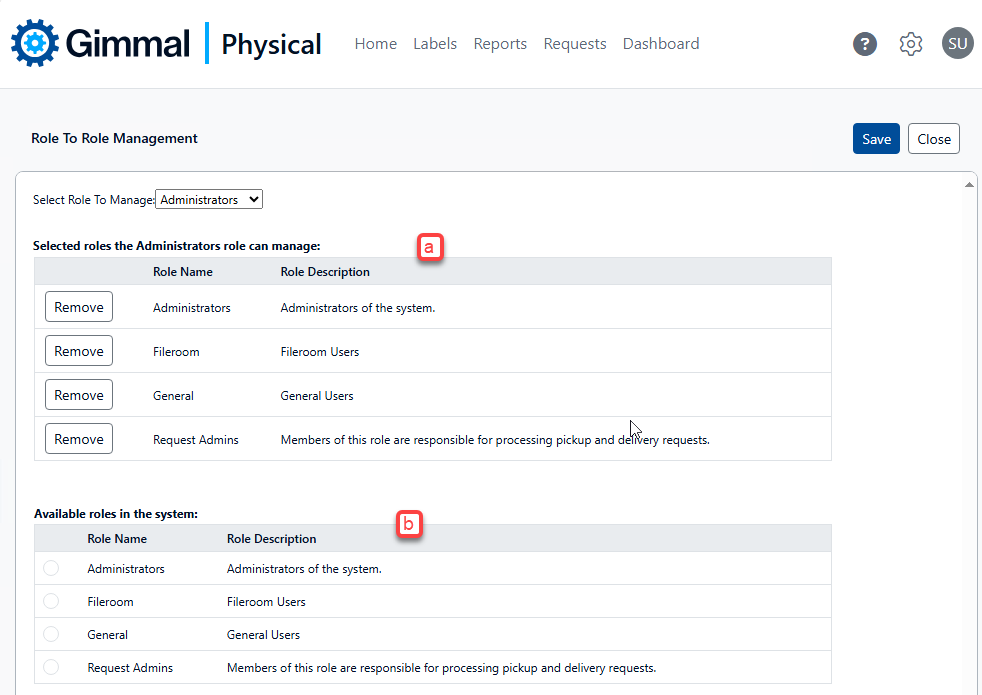
Select a role from the Select Role To Manage drop-down. The display will update to show (a) the roles that your selected role is allowed to manage, and (b) all the available roles in the system.
-
Using this image as an example, to remove permission for the Administrators role to manage the General role, simply click the Remove button for the General role. Members of the Administrators role will no longer be able to manage the General role (e.g. changing permissions, preferences, etc.).
-
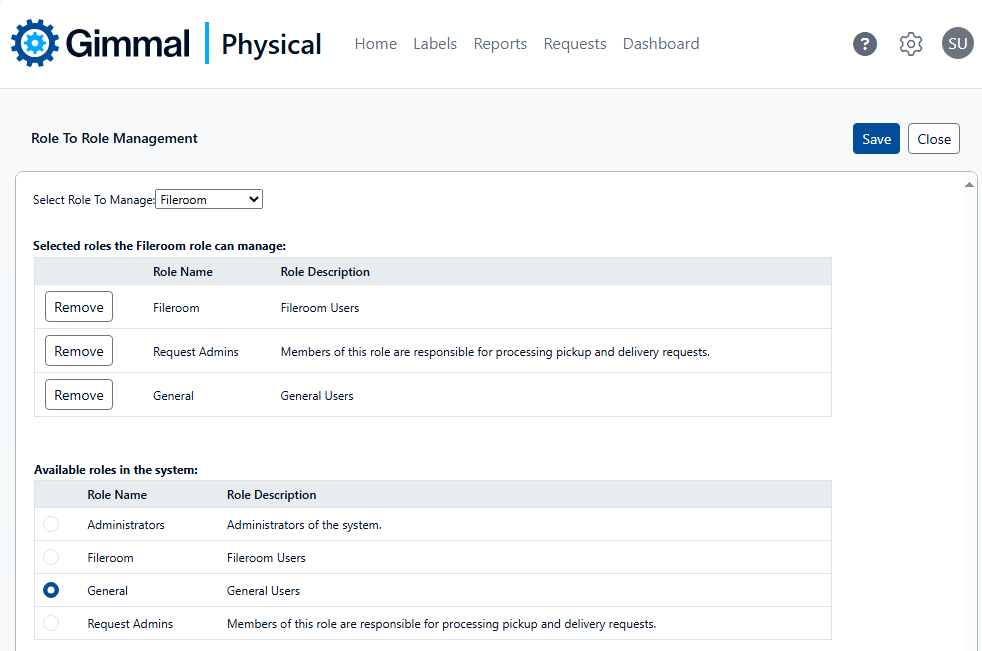
To allow the selected role to manage additional roles, simply click the radio buttons for the desired role to manage in the Available roles in the system. They will be added to the selected roles grid in turn.
-
After you have added/removed roles for the selected role to manage, click the Save button.
-
Click Close to return to the Admin page.