Broadcast Notifications enables the Gimmal Physical administrator to broadcast a specific email notification to one or more roles of Gimmal Physical users. If roles are configured with their own e-mail address, those addresses will also receive the broadcast notification.
Follow these steps to broadcast a notification:
-
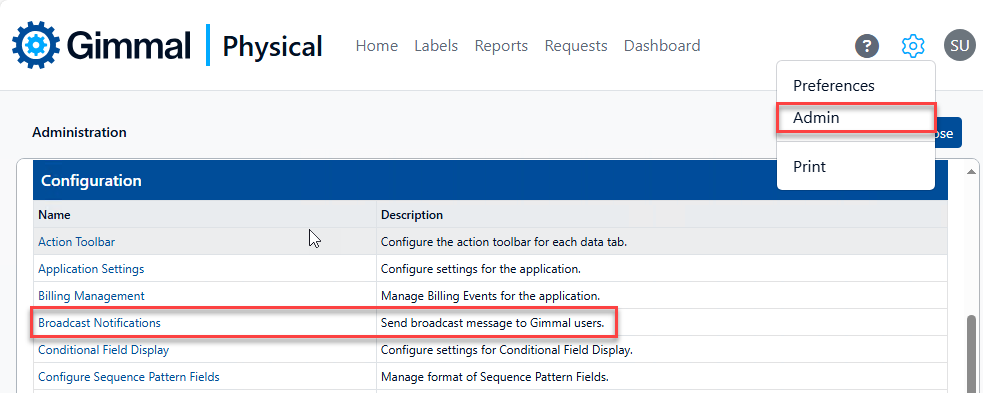
Browse to the main Admin page using the link in the gear icon, then click Broadcast Notifications in the Configuration section.
-
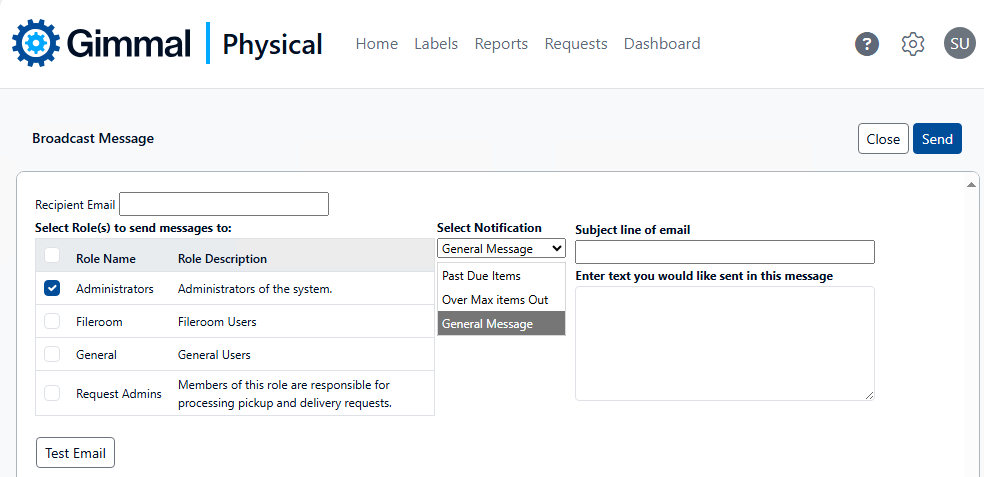
Select one or more roles to receive the message.
-
From the Select Notification drop-down list, select one of the pre-set notifications.
-
Select General Message to provide your own Subject line and text of the message to be sent.
-
-
Click the Send button to send the message.
-
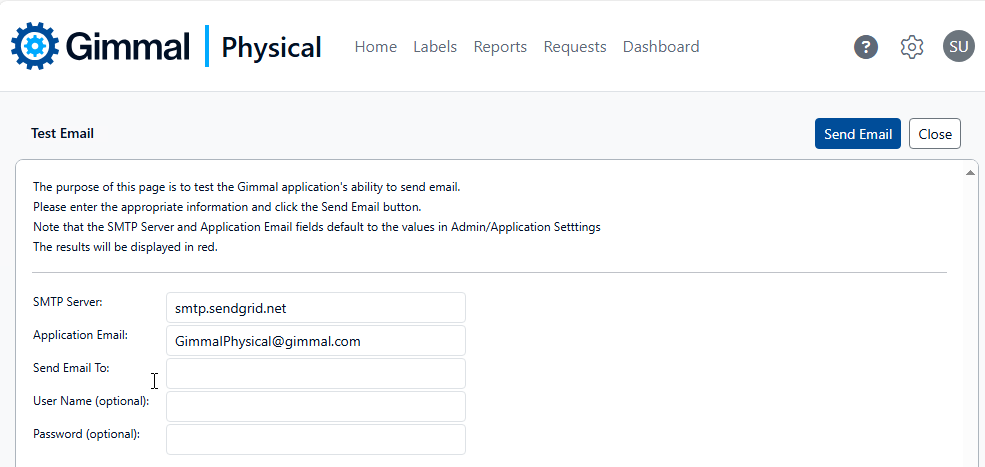
To test the application’s ability to send e-mail, click Test Email to enter a specific e-mail address, then click Send Email.
-
The other fields on the Test Email page are populated automatically or can be ignored.
-