
User accounts can be added to Gimmal Physical by following the steps below. These User accounts may ultimately be…
-
…able to login with SSO
-
…used as a Transfer/Pickup location for Files or Boxes
-
…able to login using Forms authentication
-
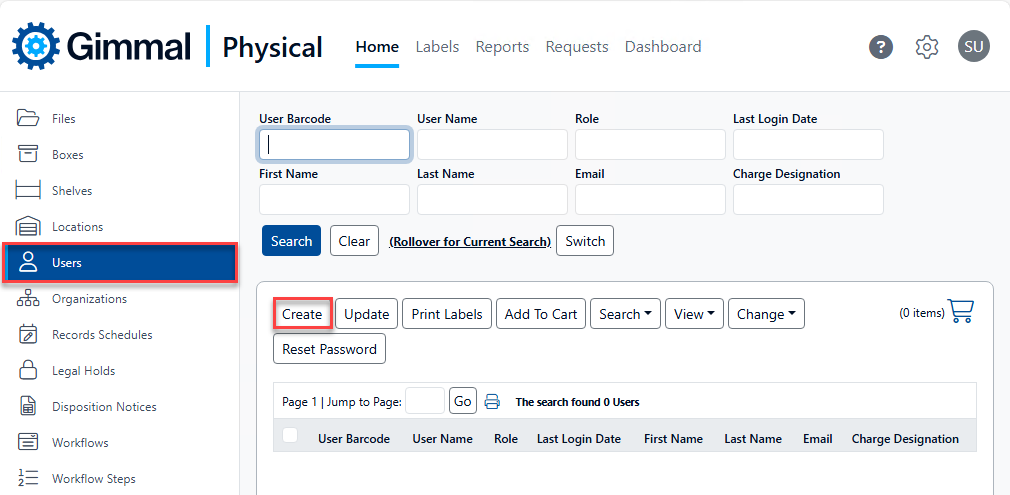
On the Users page, click Create. The Create User page displays.
-
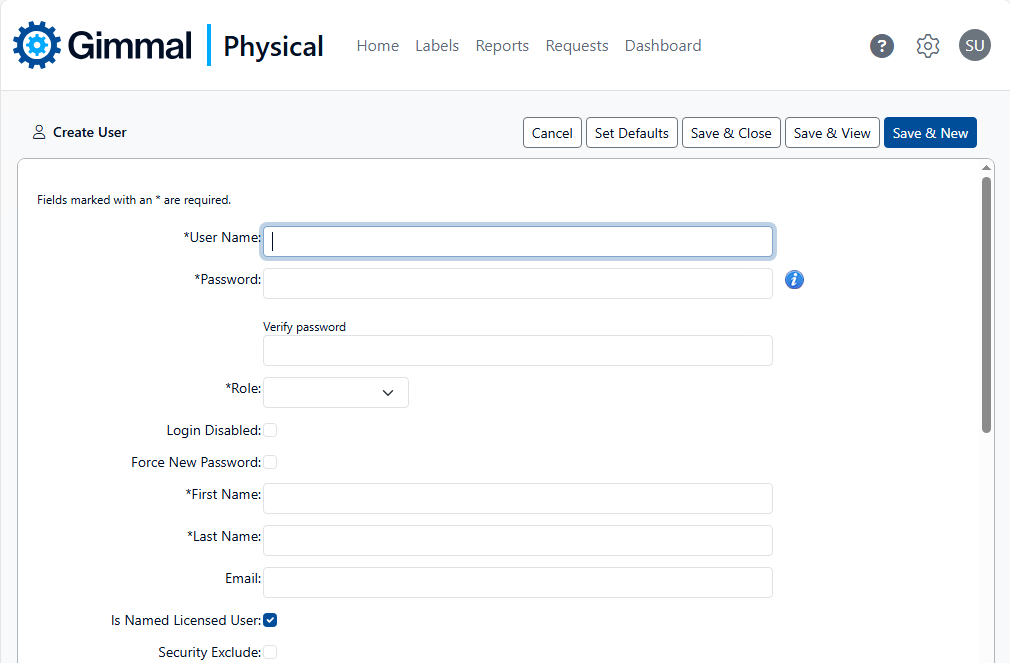
Enter the necessary information (see list below) then click Save & Close.
-
User Name: Required. Must be unique.
-
Password: Required.
-
Force New Password: Allows setting a default password that the User must change at their first login.
-
Role: Required. The assigned Role determines what permissions the User will have when logging in to the application.
-
Login Disabled: Enabling this setting prevents the user from logging in to the application. Generally used when the User accounts functions as a Transfer/Pickup location for Files and Boxes.
-
First Name: Required. First name of the User.
-
Last Name: Required. Last name of the User.
-
Is Named Licensed User: Generally used for Users that need to be able to login to the application.
-
Security Exclude: Enabling this field grants the User access to all physical items regardless of associated Organizations.
-
Other fields: populate as required by your business needs. These fields can be filled in or updated later as needed.