Overview
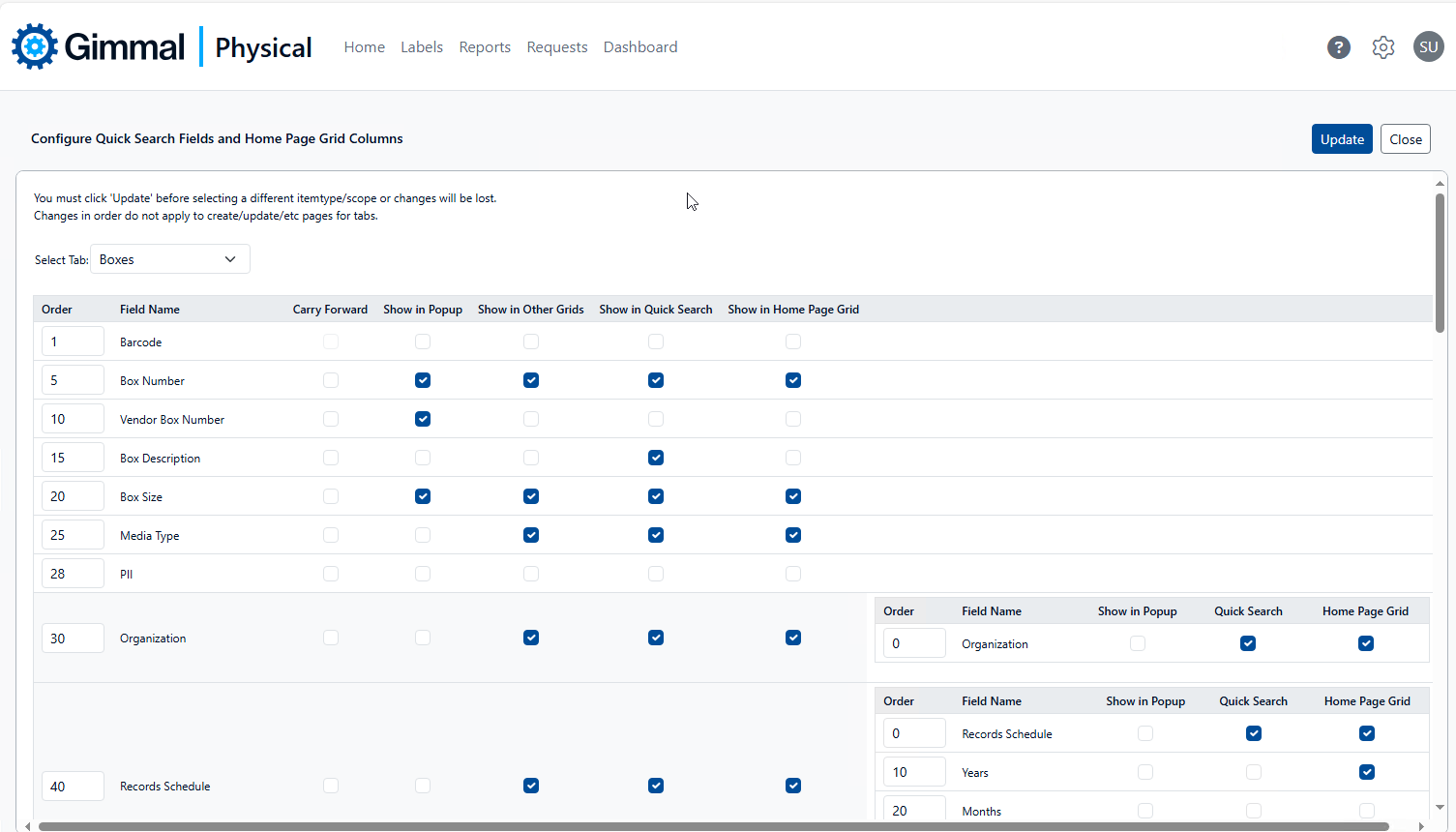
Each item tab in the application has its own field display configuration. This functionality includes:
-
Carry Forward: Fields support Carry Forward Overview for use when manually creating multiple items.
-
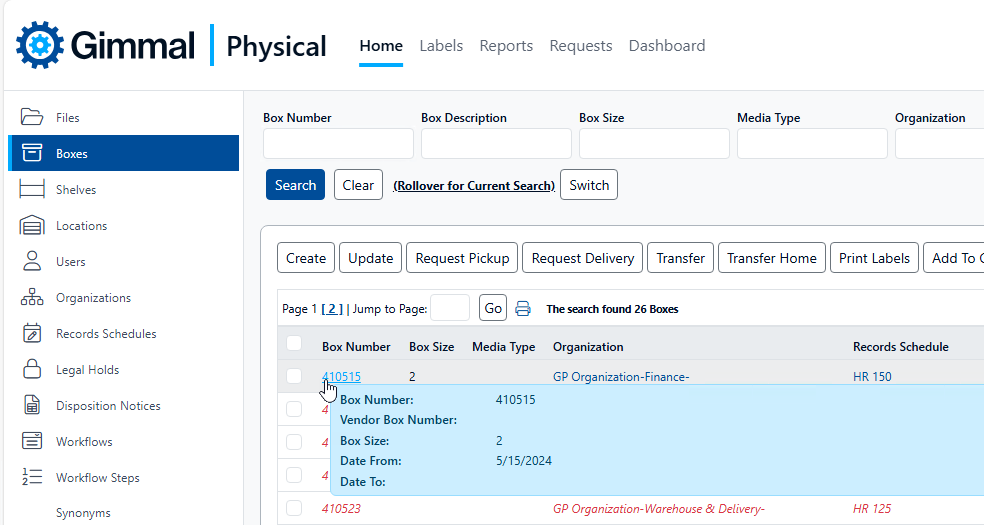
Show in Popup: Fields will appear in a popup window when you hover over the individual item links in the Home Page grid.
-
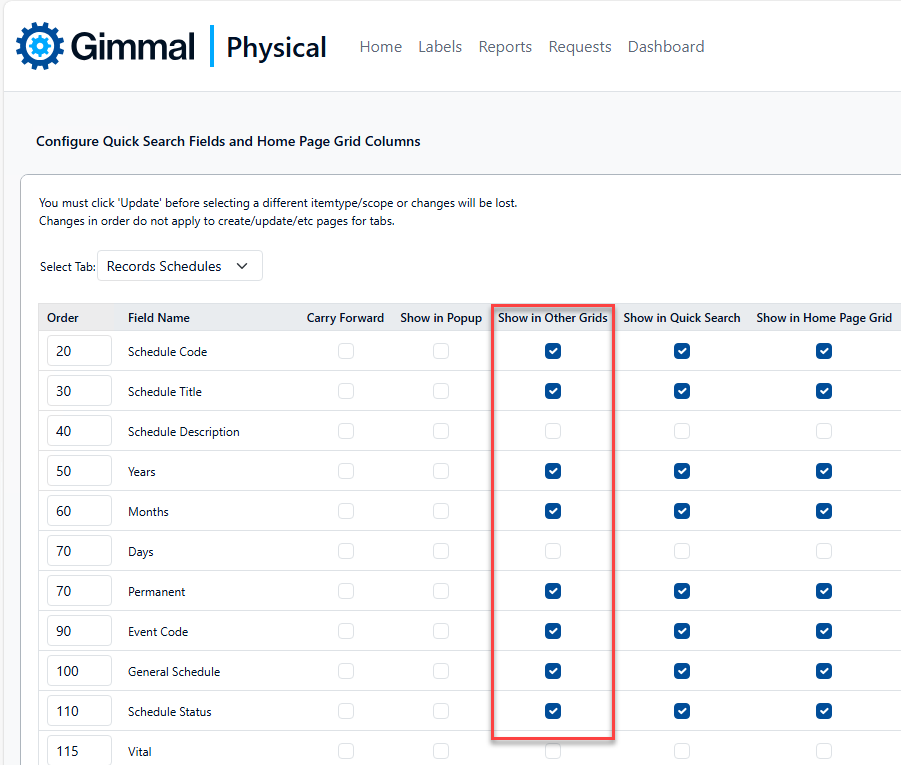
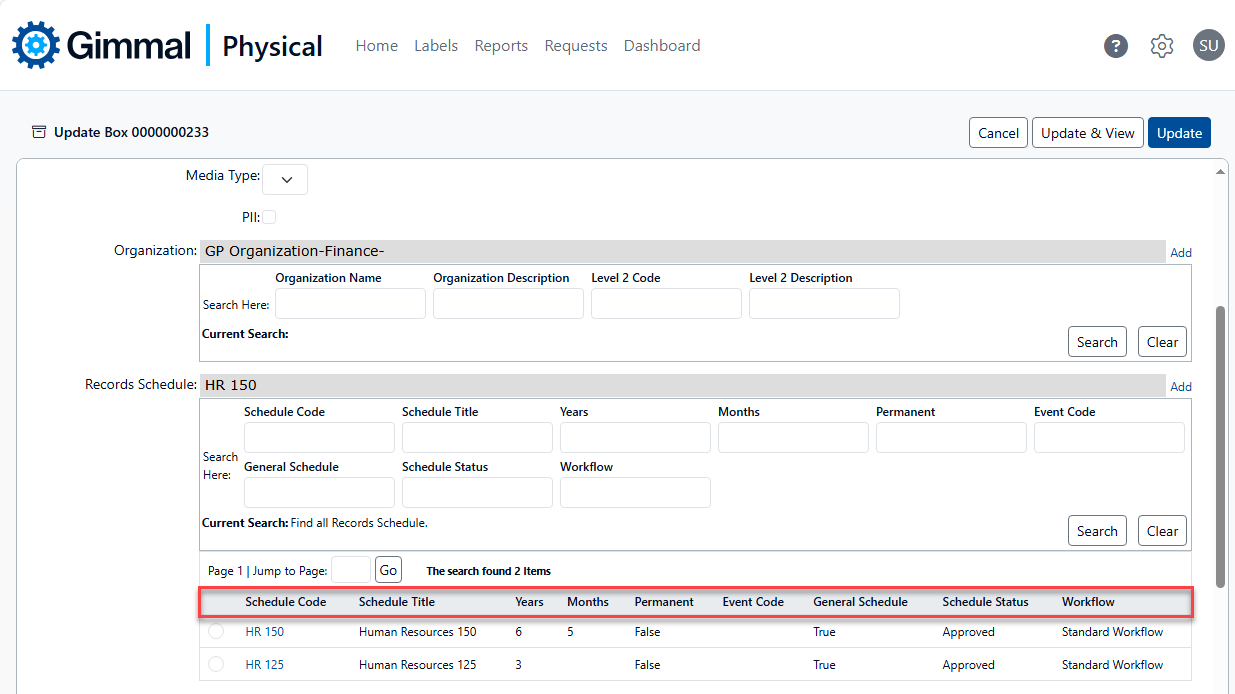
Show in Other Grids: When creating or updating an item (a Box, for example), references to other item types (data tabs), like Organizations, or Records Schedules are implemented with a grid. These grids provide functionality to search for the correct item to assign to the Box. The fields shown in those search results are those with the Show in Other Grids setting enabled.
-
Show in Quick Search: Fields displayed in the Quick Search can be used for executing basic searches. More complex search queries can be performed using the methods discussed here Search Overview
-
Show in Home Page Grid: Fields are displayed in the Home Page grid, also referred to as the search results, or query results.
Configuration
To configure this functionality, click the Admin link in the navigation bar then click Field Display in the Configuration section.
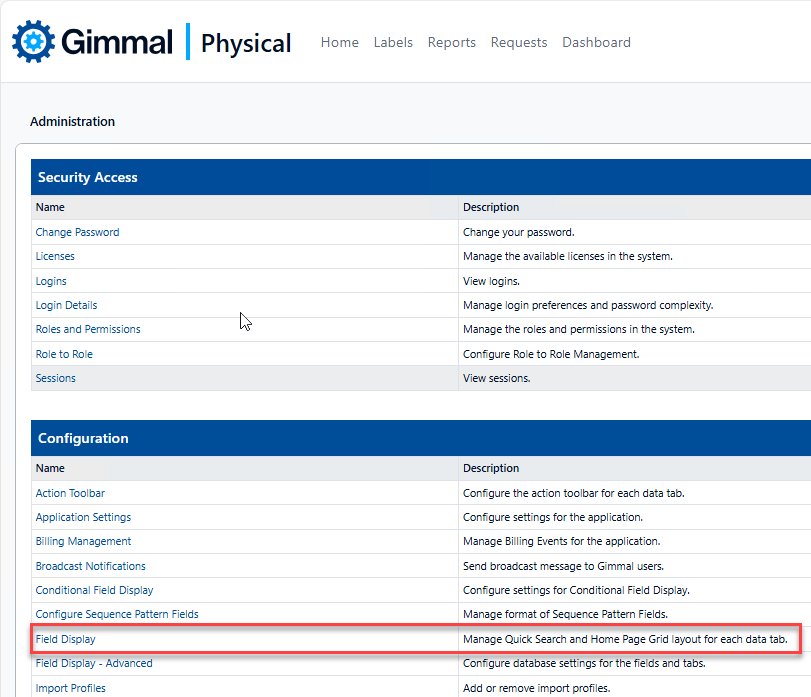
This displays the Configure Quick Search Fields and Home Page Grid Columns page.
-
Select the desired item type in the Select Tab dropdown.
-
If fields are configured as to be hidden in the application, they will not be seen here.
-
-
To adjust the relative order of fields (the same order will apply to the Quick Search and Home Page Grid) change the value of the Order column for the field.
-
Fields with the same Order value are displayed in alphabetical order.
-
-
To configure fields with Carry Forward functionality, check or uncheck the boxes in the Carry Forward column.
-
To include/exclude fields in item popup windows, check or uncheck the boxes in the Show in Popup column.
-
To include/exclude fields in Other Grids, check or uncheck the boxes in the Show in Other Grids column.
-
To include/exclude the display of fields in the Quick Search area of this item tab, check or uncheck the boxes in the Show in Quick Search column.
-
To include/exclude the display of fields in the Home Page Grid of this item tab, check or uncheck the boxes in the Show in Home Page Grid column.
-
Click Update after making your changes.
-
Make sure to click the Reset Cache link if it displays.