
The appearance of the action toolbar for each item type (data tab) in the application can be configured at the system level.
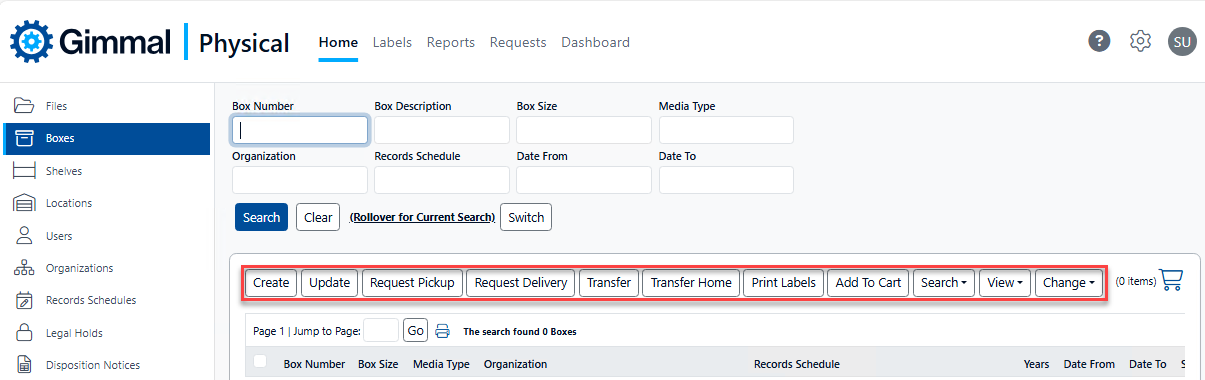
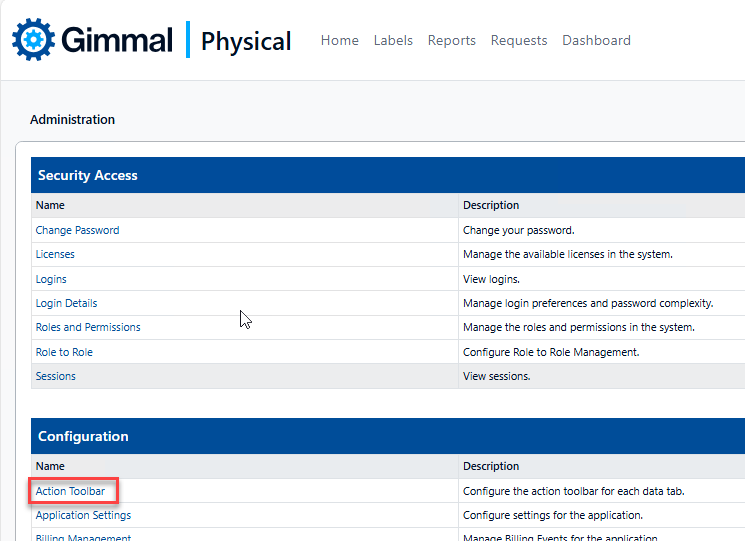
To change the Action Toolbar configuration, browse to the Admin page, then click Action Toolbar within the Configuration section. This displays the Configure Action Toolbar page.
-
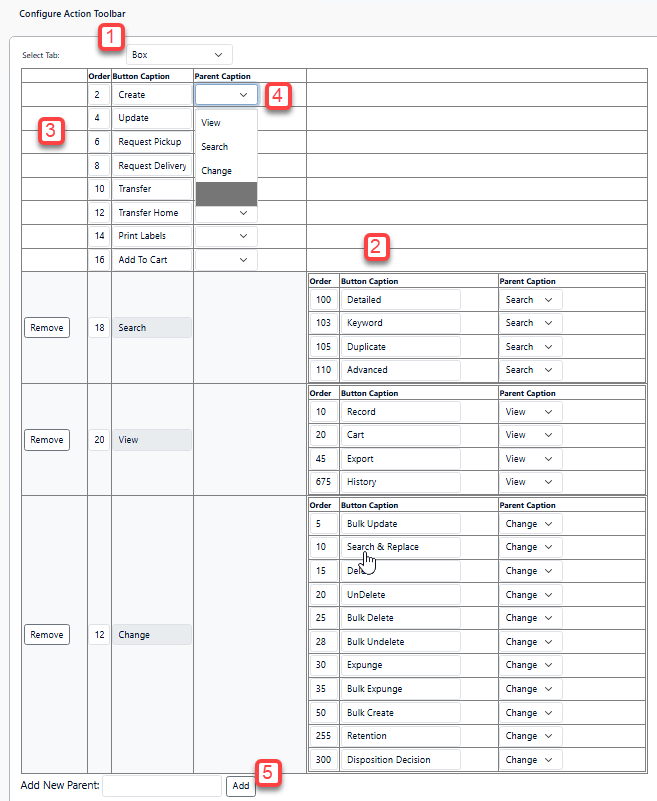
Choose the desired item tab from the dropdown that you want to change the Action Toolbar for.
-
Button captions (display names) can be changed by entering the desired name in the Button Caption field (parent names cannot be changed)
-
The order of the buttons in the toolbar is adjusted using values in the Order column (smaller to larger from left to right). For choices in a parent button, the order is top down.
-
To move a button under a (new) parent button, select the desired parent from the Parent Caption dropdown. To move a button out from under a parent, set its Parent Caption dropdown to blank.
-
New parents can be added by entering the desired name in the Add New Parent text field and clicking Add.
-
Make sure to click Update after completing your changes or Cancel to discard.