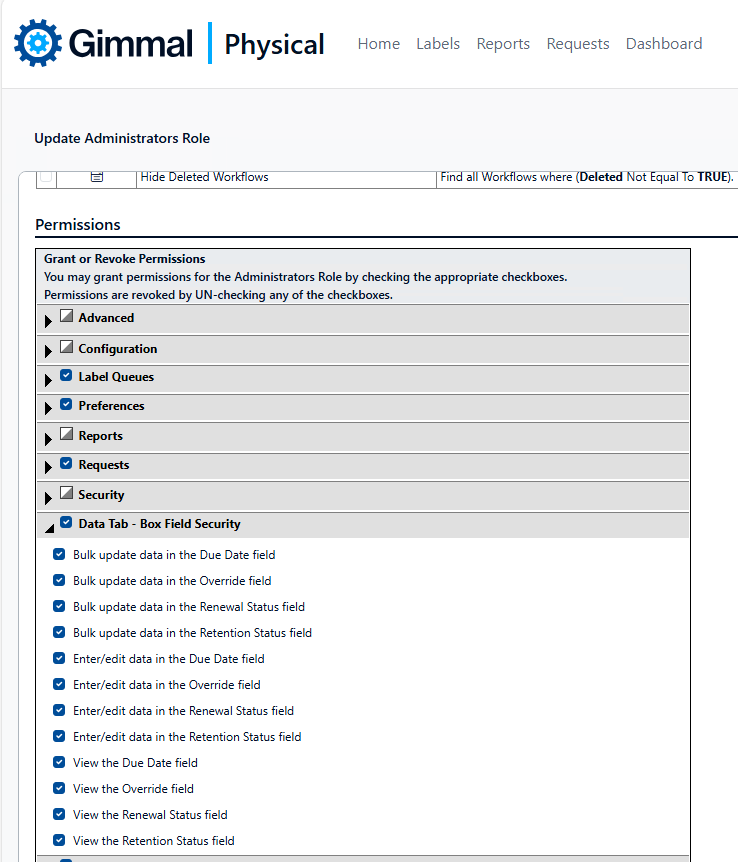
When fields in Gimmal Physical are made Secure Fields, permissions for those specific fields can now be configured for each Role in the application. These permissions are:
-
Enter/Edit: Controls whether the field can be populated upon initial creation, or edited for a single item, by members of the Role.
-
Bulk update: Controls whether the field can be update via Bulk Update operations.
-
View: Controls whether the field is visible or not. If the field is already configured to Hide in Application, then this permission has no effect.
Make a Field Secure
Before field level permissions can be configured for a Role, the field must first be made secure.
-
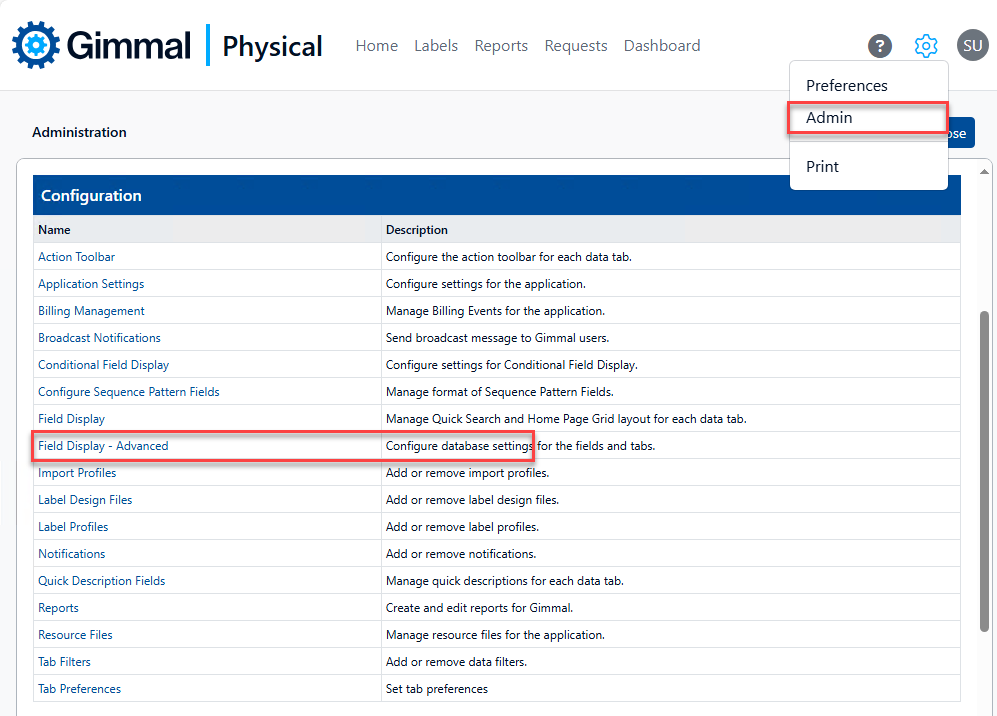
Browse to the Admin page via the gear icon. Then click Field Display - Advanced in the Configuration section. This displays the Field Display - Advanced page.
-
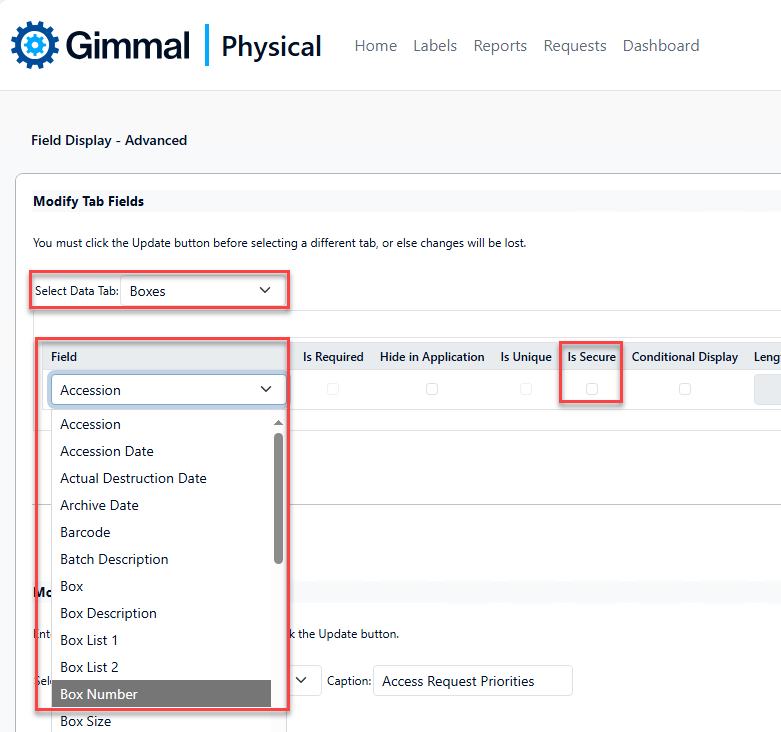
Select the desired data tab in the Select Data Tab drop-down.
-
Select the field you wish to make secure from the Field drop-down. Fields are listed alphabetically by caption.
-
Check the Is Secure box.
-
Click Update. Make sure to reset the cache if prompted.
Configure Field Security
Now that the field is a Secure Field, Role permissions for the field can be configured.
-
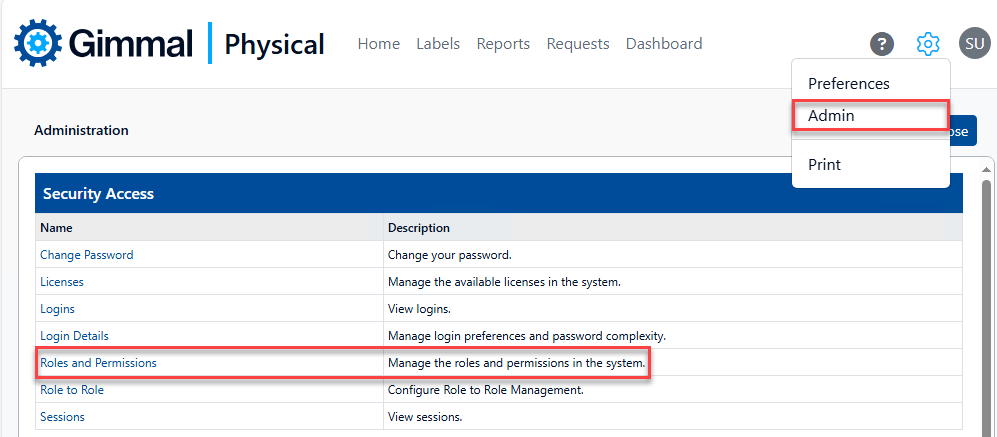
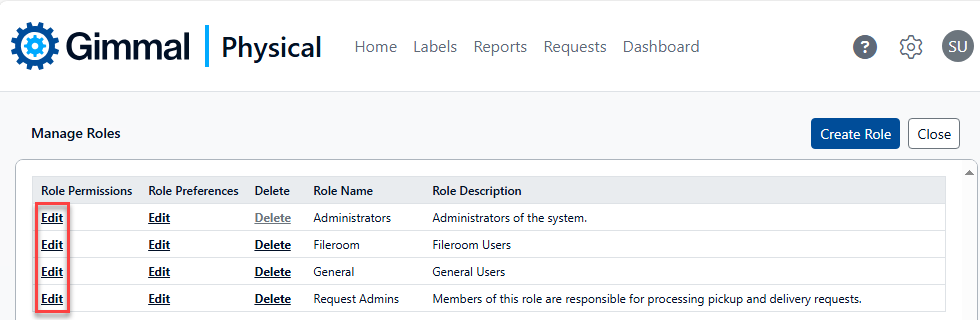
Browse to the Admin page via the gear icon. Then click Roles and Permissions in the Security Access section. This displays the Manage Roles page.
-
Click Edit in the Role Permissions column for the Role you wish to configure Field Security for. This displays the Update Role page.
-
On the Update Role page, expand the Data Tab - …Field Security section for the Item Tab the Secure Field was created on. The entries are grouped by permission. Check/un-check the boxes for each permission/field as required. Repeat for each Data Tab and Role as necessary. Click Save when done.