
Activating Carry Forward for a data tab is done in the preferences.
-
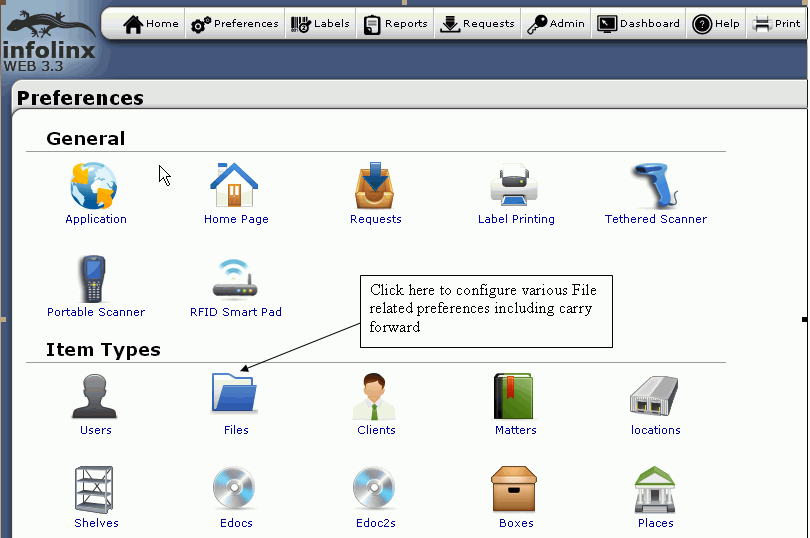
Click on the preferences navigation menu link.
-
Click the data tab link for which you would like to activate/deactivate Carry Forward.
NOTE: The data tab name may vary. Each data tab has its own preferences section and Carry Forward setting. For example, to change Carry Forward for Files, click on Files related preferences.
-
Change the setting to activate/deactivate Carry Forward. By default it is always enabled.
NOTE: A scope of User with the person icon indicates this is a user preference. As a result, changing this value only affects the currently logged in user. Therefore, each person can activate/deactivate Carry Forward. If you have sufficient rights, it is possible to set the default value for other users to your value by clicking the 'Set As Default' button.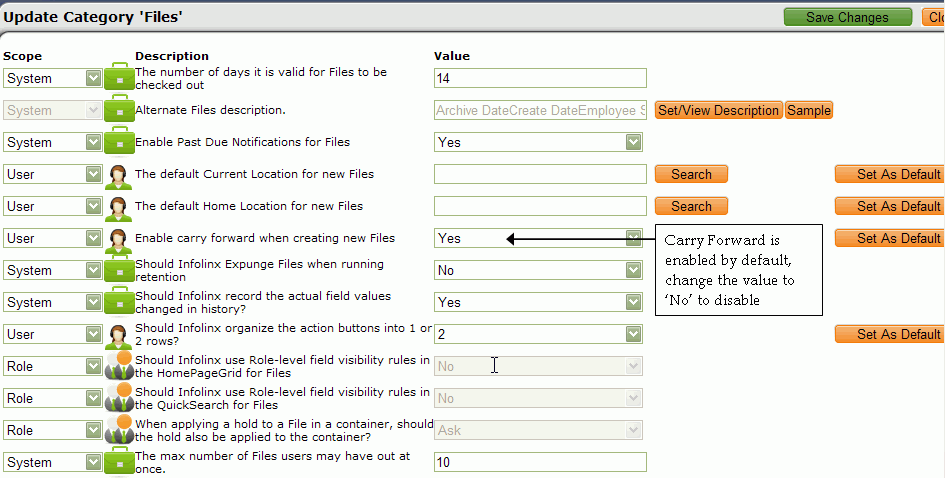
-
Click the 'Save Changes' button to save your changes.