
After you install the SharePoint Connector, you must direct the Connector to the location of Gimmal Records. To do so, perform the following steps:
-
Open SharePoint Central Administration.
-
Go to Manage Service Applications > Gimmal SharePoint Connector.
-
Select Configure Connection.
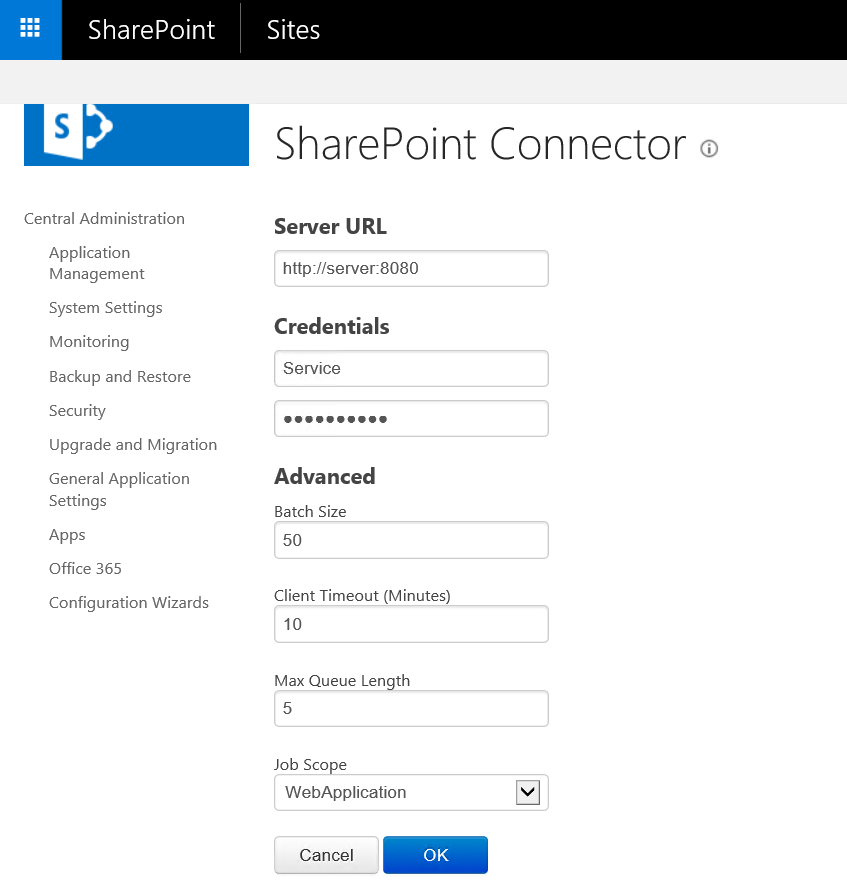
-
Enter the following information:
-
Server URL to Information Lifecycle Manager Web (ex. http://server:8080)
-
Username* for the Service Account (Service Account is created in Gimmal Records)
-
Password for the Service Account
-
Batch Size
-
Client Timeout in minutes.
-
Max Queue Length
-
Job Scope
-
-
Click OK. (Credentials will be validated.)
The Service Account username format depends on whether or not you are connecting to the Gimmal Cloud for Gimmal Records. If the Gimmal Cloud is being used, the username format is: {service account name}@{tenant domain} (e.g. spocservice@gimmal.com, or fscservice@companyname.com), otherwise, the format is just: {service account name}.