
If you have view permission on a container, then you also have the ability to view any physical assets that are within that container. To view physical assets in a container, perform the following steps:
-
Select Physical on the Main Menu, and then Containers on the left navigation menu. The Containers page displays.
-
Locate the container whose physical assets you want to view, and click the drop-down arrow on the right side. The container context menu displays. (The drop-down options you see may vary, depending on your permissions.)
-
Click View Assets.
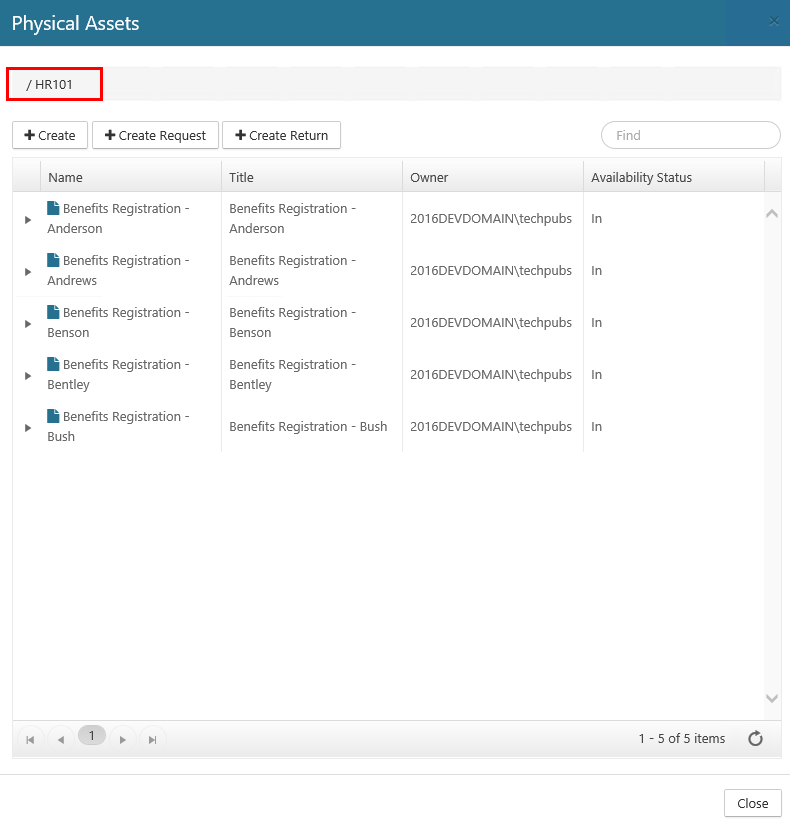
The Physical Assets window displays, showing a list of all the physical assets in that container.
Viewing Asset Properties
You can view the properties you entered when you initially created a physical asset.To view an asset's properties, perform the following steps:
-
Follow steps 1, and 2 from Viewing Physical Assets in a Container above
-
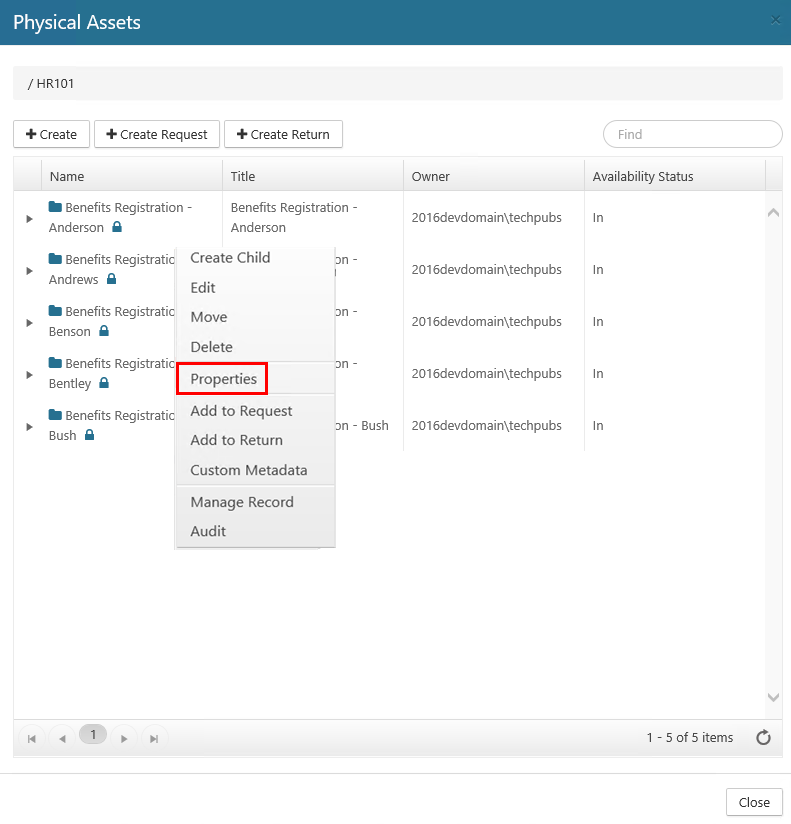
For the asset whose properties you want to view, right-click on the asset name. A drop-down menu displays. (The drop-down options you see may vary, depending on your permissions.)
-
Click Properties. The Properties dialog box opens, showing you the properties that were entered for that asset.
Viewing Asset Record Details
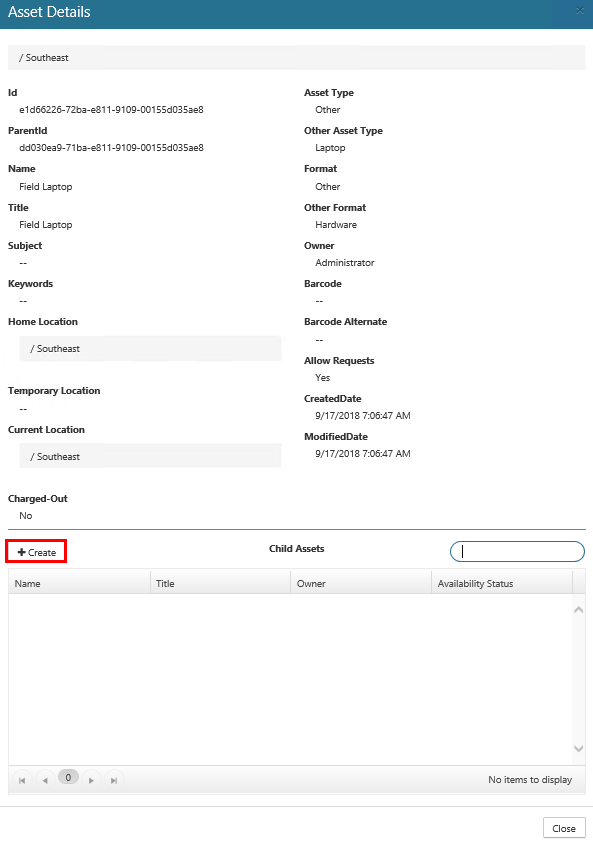
The core Records Management application provides a convenient way to view a physical asset's record details directly from the Records page. If a physical asset has child assets, they will display at the bottom of the Asset Details window as well.
Perform the following steps to view a physical asset's record details:
-
Follow step 1 from Viewing Physical Assets in a Container above
-
Click Manage* on the Main Menu, and then click Records on the left navigation menu. The Records page displays.
-
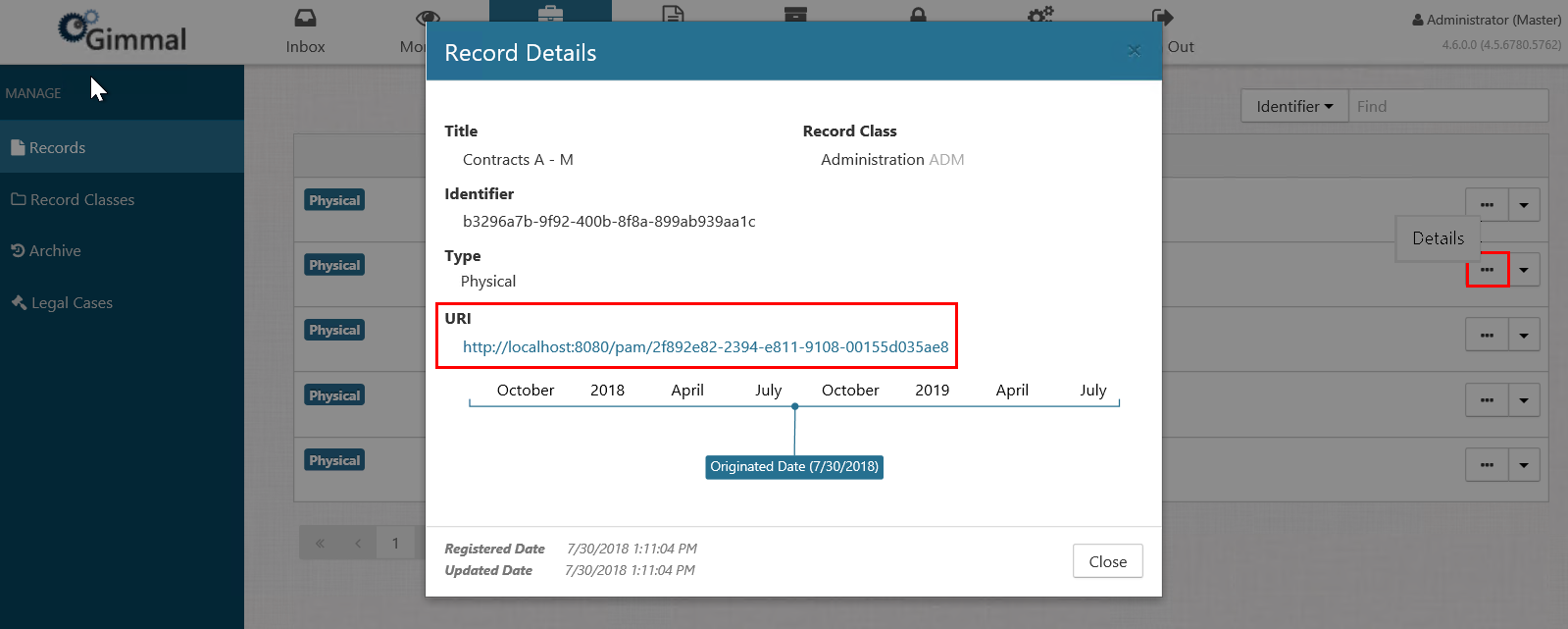
Locate the physical asset whose record details you want to view, and click the "Details" ellipsis (...) to the right of the asset name. The Record Details window opens.
-
Click the link under URI. The Asset Details page displays, showing the physical asset's metadata in View mode.
-
If you choose to add additional child assets, click the +Create button, and perform the steps described in Creating a Child Asset. (Physical Users must have container permissions set to Edit or higher on this container to create additional child assets.)