
Record Filters are created and managed from the Plan main menu selection.
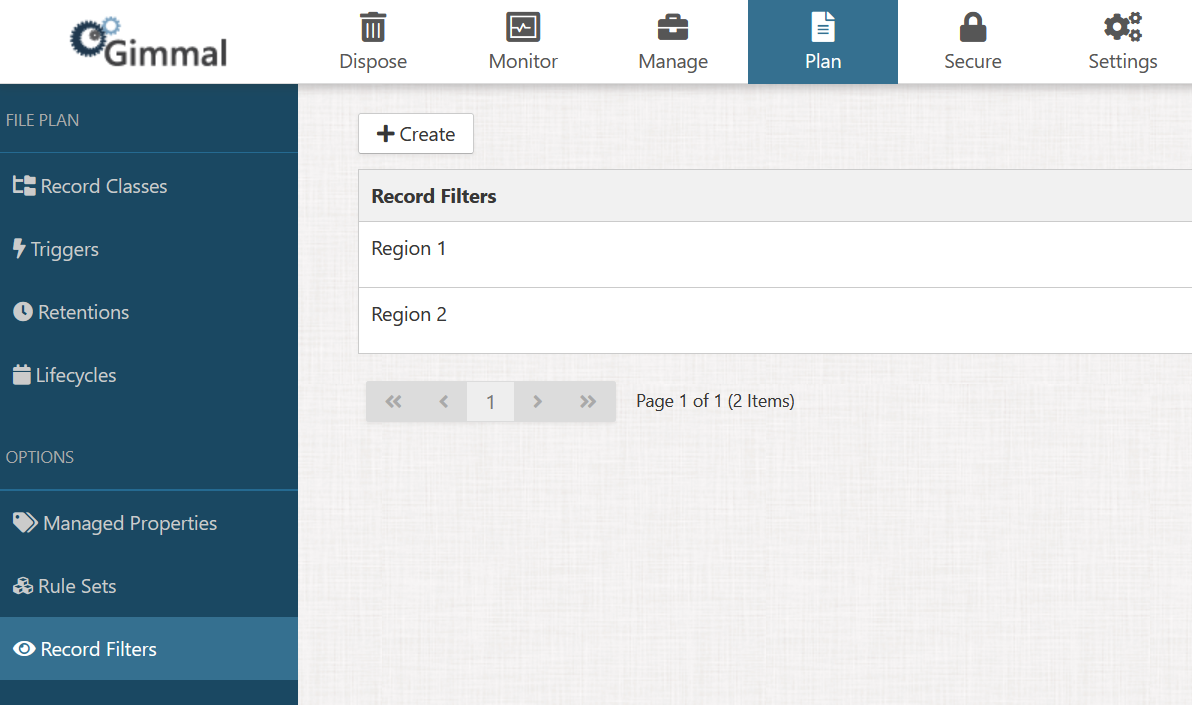
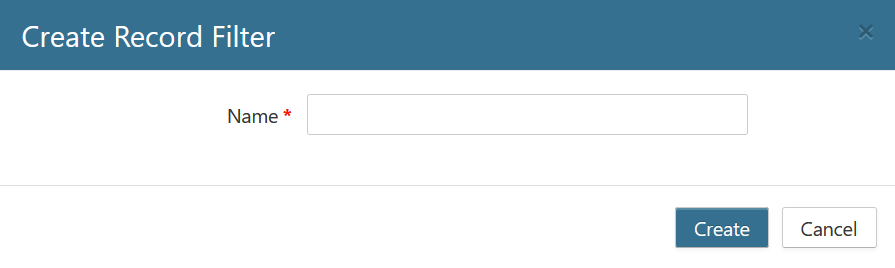
When you select the Create button, the following window appears, where you should enter a unique name for the new Record Filter.
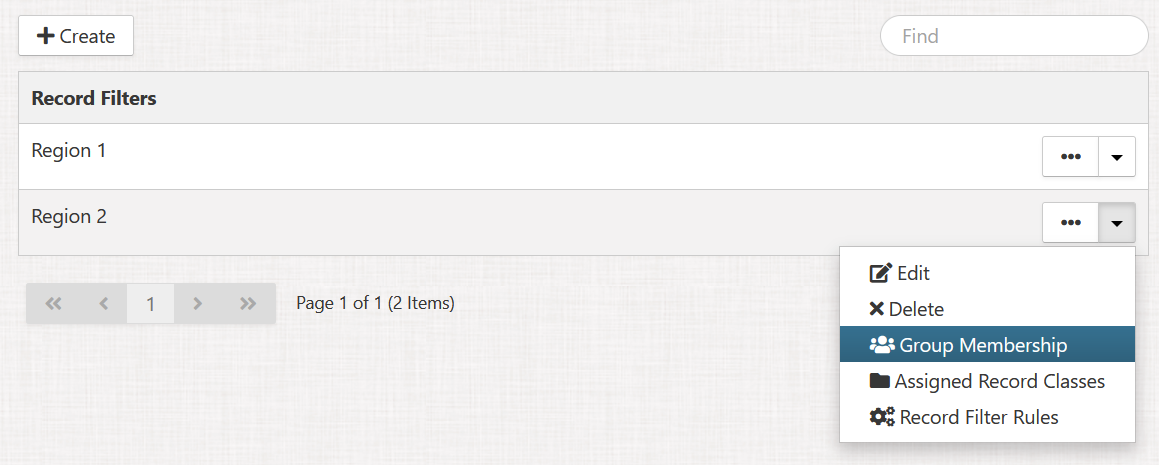
Once a filter is created, the drop-down menu on the right side of each filter allows the following actions:
-
Edit
-
Delete
-
Group Membership
-
Viewing and removing assigned Record Classes
-
Rules
Group Membership
Group membership works in an inclusive manner, meaning that all members added to the group will gain access to records for a particular Record Class when the rules for the filter result in a positive outcome. If there are no Record Filters that include a specific user, that user will not be able to see any records that belong to that Record Class.
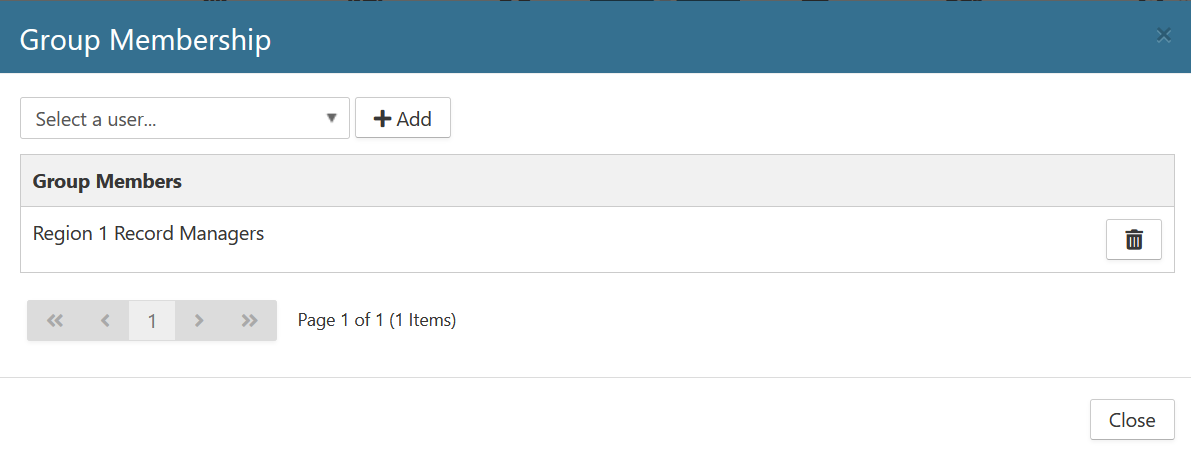
To create Group Memberships, select the drop-down menu for a Record Filter and select Group Membership.
You may add either individual users or user groups to the Group Membership.
Record Filter Rules
Record Filter Rules determine which records should be filtered to the specific group. For example, if you wanted to narrow down a specific region to only show records for the SharePoint site "Region 1" at the URL https://mysharepoint/sites/region 1, you could create the following rule:
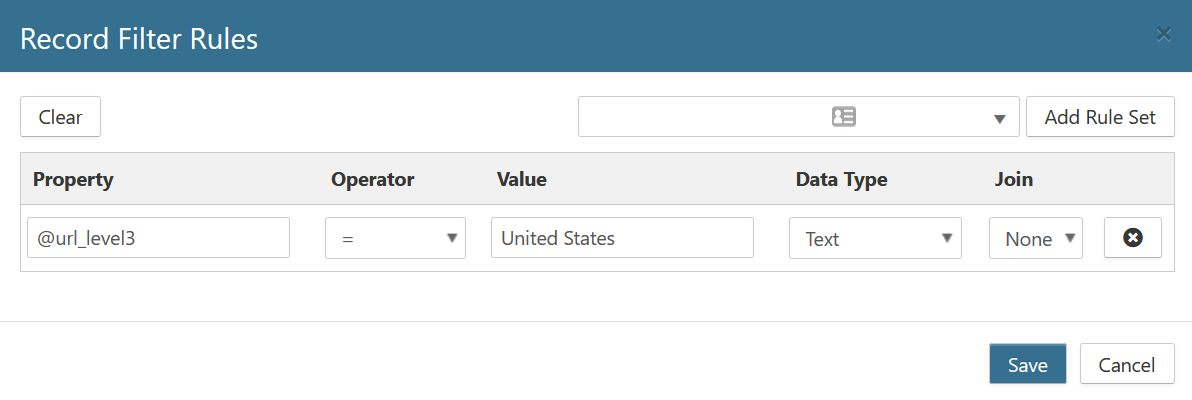
For detailed information on creating rules, see the Rule Builder topic.