
-
Log into Records Management Manager Web using your Master ("Administrator") account, and verify that the Physical Records Management Service Account has been created. (For more information, see Creating a Service Account.)
-
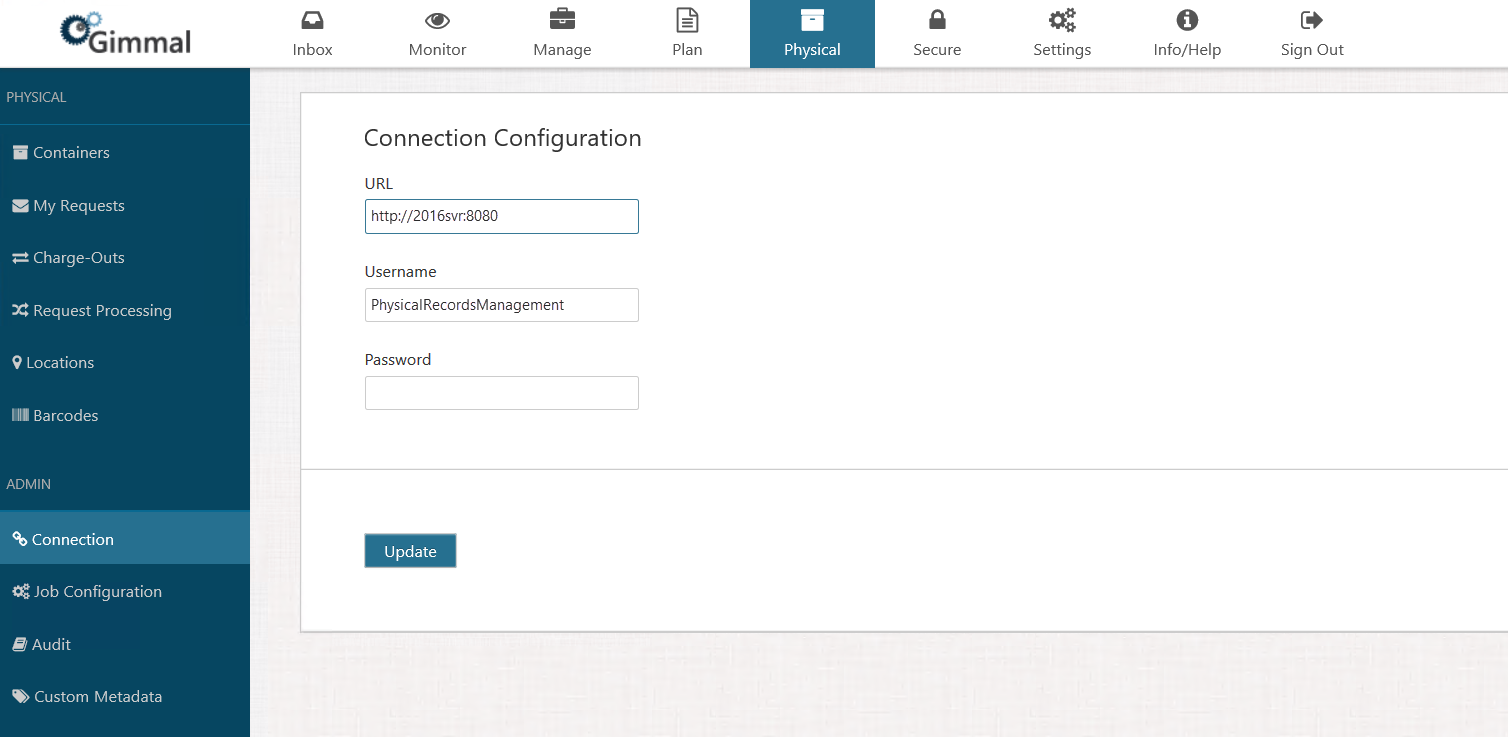
Click Physical on the Main Menu, and then click Connection on the left Navigation Menu. The Connection Configuration page displays.
-
Enter the connection URL
-
Enter the Service Account Username and the Service Account Password.
-
Click Update. (This button will display Save if this is the first time configuring the connection)
-
Start the Gimmal Physical Records Management Service from the Windows Services dialog.
-
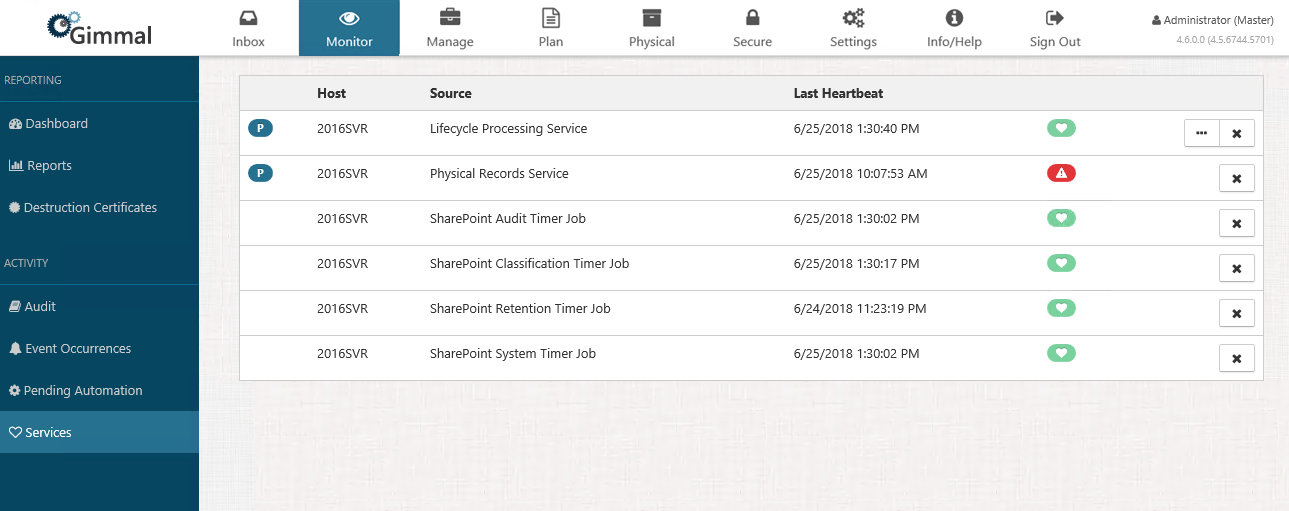
Return to Physical Records Management, and on the Main Menu, click Monitor > Services. A list of services displays.
-
Verify that Physical Records Service displays with the green heartbeat icon, as well as the "P" icon indicating that it's a Primary service.
Existing Gimmal Cloud service customers (pre-Feb. 27th, 2021) should continue to use the existing URLs.
-
US Test - https://test.recordlion.net
-
US Production - https://app.recordlion.net
-
UK Test - https://testuk.recordlion.net
-
UK Production - https://uk.recordlion.net
New Gimmal Cloud service customers (post-Feb. 27th, 2021) should use the new URLs.
-
US Test - https://records.gimmal.build
-
US Production - https://records.gimmal.cloud
-
UK Test - https://records.uk.gimmal.build
-
UK Production - https://records.uk.gimmal.cloud
-
CAN Production - https://records-ca.gimmal.cloud/
NOTE: Existing customers already using the existing URL should not change to the new URLs as this may cause issues.