Overview
The SharePoint Online Connector (SPOC) provides comprehensive management capabilities that allow administrators to control access to the application. Users can be added, viewed, edited, and deleted through the web administration interface.
Prerequisites: Before managing users, ensure you have Administrative access to the SharePoint Online Connector web application.
User Types
The SharePoint Online Connector supports two distinct types of user accounts: Standard Users and Service Accounts.
|
Feature |
Standard User |
Service Account |
|
Authentication Method |
Entra ID |
Username/Password or Entra ID |
|
SSO Support |
Yes |
Optional |
|
Password Management |
Managed by Azure AD |
Managed in the connector |
|
Typical Use Case |
Interactive administration |
API/automation, initial deployment |
|
Requires an Entra Account |
Yes |
No (Optional) |
Standard Users
Standard users authenticate using Entra ID credentials and are typically used for:
-
Interactive administration of the SharePoint Online Connector
-
Configuration management of sites, libraries, and transfers
-
Monitoring and reporting activities
-
Day-to-day operations by records managers and administrators
Key Characteristics
-
✅ Authentication via Entra ID(OpenID Connect)
-
✅ Single Sign-On (SSO) support
-
✅ No password stored in the connector database
-
✅ Must exist in the Azure AD tenant
-
✅ Email address used as username
Service Accounts
Service accounts typically use username and password authentication and are often used for:
-
API integration with external systems
-
Automated processes and scheduled tasks
-
Programmatic access to the connector REST API
-
Legacy system integration when Azure AD authentication cannot be used
Key Characteristics
-
Authentication allowed via username/password (Basic Auth or form-based) or Entra ID
-
When Basic Authentication is used:
-
Password stored securely in the connector database
-
Does not require an Azure AD account
-
Minimum password length: 12 characters
-
-
When Entra ID Authentication is used
-
SSO can be used
-
Account must be registered with Entra ID
-
When using Entra ID for Authentication, the following must apply to any new administrator service account:
-
It must be a valid Entra ID (formerly Active Directory) login
-
The username suffix must match the registered Gimmal Records tenant domain (e.g. user@sampledomain.com for SampleDomain tenant).
-
The account name must be in the form of an email address.
-
The email address must be registered in the Gimmal Cloud via a ticket to Support.
-
The account must be able to receive email. Gimmal Records needs to be able to send an email inviting the account to join the B2B collaboration. (Note: If this collaboration has already been established with an existing account, an email will not be sent.)
Adding New Users
Add a Service Account
Service accounts provide an alternative authentication method for API access and automation scenarios.
-
Log in to the SharePoint Online Connector web application with an existing administrator account
-
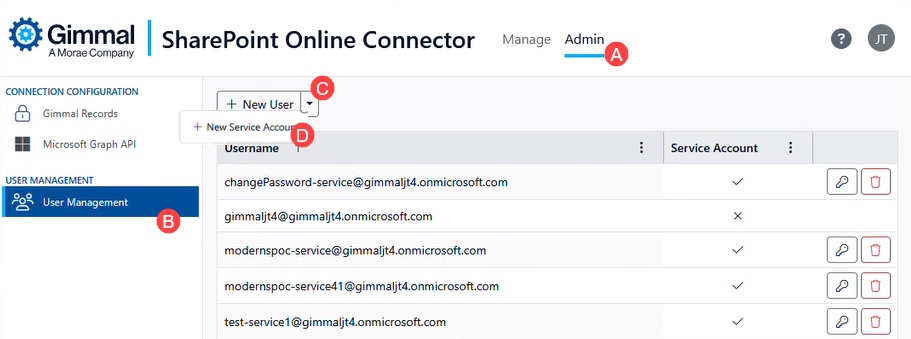
Click on the Admin tab in the top navigation menu (A)
-
Click on the User Management tab in the left navigation menu (B)
-
Click the dropdown arrow next to the New User button (C)
-
Select New Service Account from the dropdown menu (D)
-
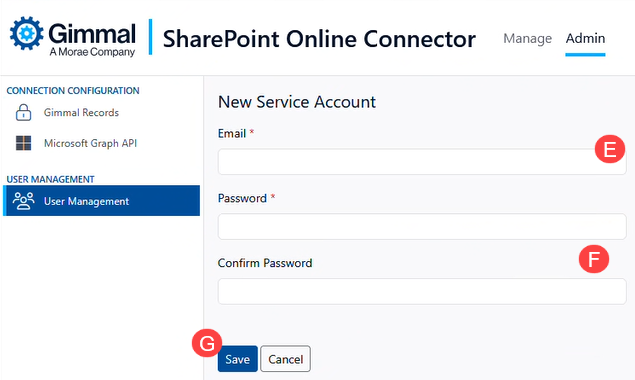
The New Service Account Window opens:
-
Enter the email address on the New Service Account page (E)
-
Enter a password and confirm the password details. The password should be at least 12 characters.
-
If this service account will use an Entra ID to validate, this password will not be used by the system. All authentication is handled entirely by your organization’s Entra tenant.
-
If this service account will use Basic Authentication (e.g., Username and Password), then the account must use the ‘Login Locally’ option at the point of login.
-
-
Click the Save button to add the new service account user (F)
Standard User
As a standard user account requires Entra ID to validate, please ensure this account exists in the client’s Entra tenant and has been registered in the Gimmal Cloud via a ticket to Support.
-
Log in to the SharePoint Online Connector web application with an existing administrator account
-
Click on the Admin tab in the top navigation menu (A)
-
Click on the User Management tab in the left navigation menu (B)
-
Click on New User from the dropdown (C)
-
Enter the email address of the user to be added
-
Click the Save button to add the user
The user is now added and can log in to the SharePoint Online Connector
View User List
The Users page displays all users who have access to the SharePoint Online Connector.
Accessing the User List
-
Log in to the SharePoint Online Connector web application
-
Click on the Admin tab in the top navigation menu
-
Click on the User Management tab in the left navigation menu
|
Column |
Description |
|
Username |
The user’s email address or username |
|
Service Account |
Checkmark (✓) indicates the user is a service account |
|
Actions |
Available actions for the user (Delete, Change Password) |
Delete a User
Users can be removed from the SharePoint Online Connector when they no longer require access.
Restrictions on User Deletion
The following users cannot be deleted:
-
❌ Primary Administrator Account: The primary admin account for the tenant
-
❌ Your Own Account: Users cannot delete themselves
-
✅ All Other Users: Can be deleted
Step 1: Initiate User Deletion
-
Log in to the SharePoint Online Connector web application
-
Click on the Admin tab in the top navigation menu
-
Click on the User Management tab in the left navigation menu
-
Click on the delete (trash can icon) button
Step 2: Confirm Deletion
-
Review the user information displayed in the confirmation dialog
-
The dialog shows:
-
Username or email of the user to be deleted
-
Warning message about the action being permanent
-
-
Click Delete to confirm and remove the user
-
Click Close to cancel without deleting
Result: The user is immediately removed from the SharePoint Online Connector and can no longer access the application.
Deleting a user from the SharePoint Online Connector does not delete the user from Entra or the Gimmal Cloud tenant. It only removes their access to this specific connector instance.
Change Service Account Password
Service account passwords can be changed through the web interface. This operation is only available for service accounts, not standard Azure AD users.
Step 1: Access Password Change
-
Log in to the SharePoint Online Connector web application
-
Click on the Admin tab in the top navigation menu
-
Click on the User Management tab in the left navigation menu
-
Select the Change Password button (key icon) for the user
Step 2: Enter New Password
-
Password (required)
-
Enter the current password for verification
-
-
New Password (required)
-
Minimum length: 12 characters
-
-
Confirm Password (required)
-
Re-enter the new password to confirm
-
Step 3: Save Password Change
-
Click Save to update the password
-
Click Cancel to return without making changes
Result: The service account password is immediately updated. Any applications or scripts using the old password will need to be updated with the new credentials.
Advanced
(Optional) Add Users to Manage SPOC in Entra
These permissions must be configured during Entra ID setup. See Prepare to use the SharePoint Online Connector for details.
This section outlines how users who manage and configure the SharePoint Online Connector can be added to the application registration in Entra. This is an optional step and is only required if the ‘Assignment required’ property is set to ‘Yes’ for the enterprise application.
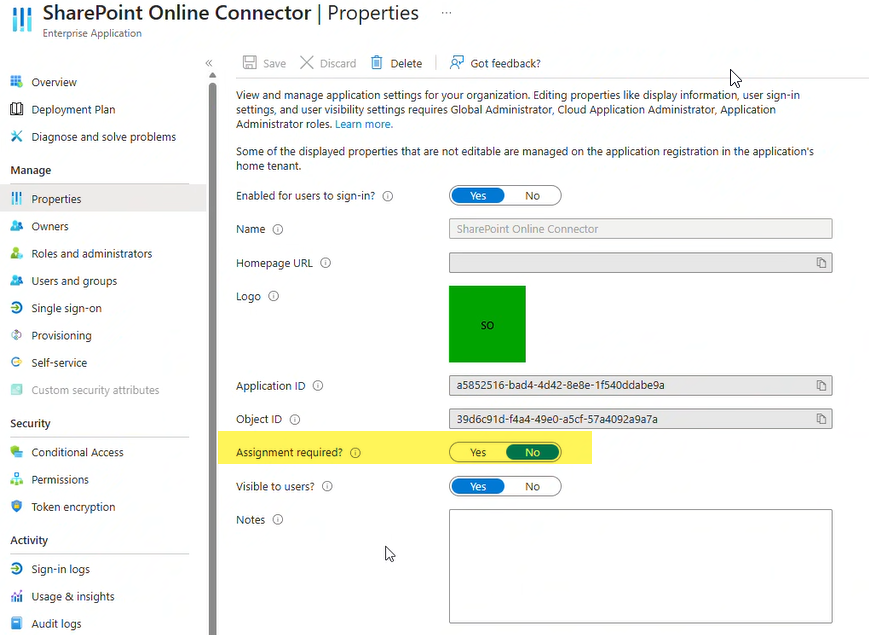
Note: These accounts should be administrative users or groups who are responsible for managing the connector and troubleshooting when needed.
-
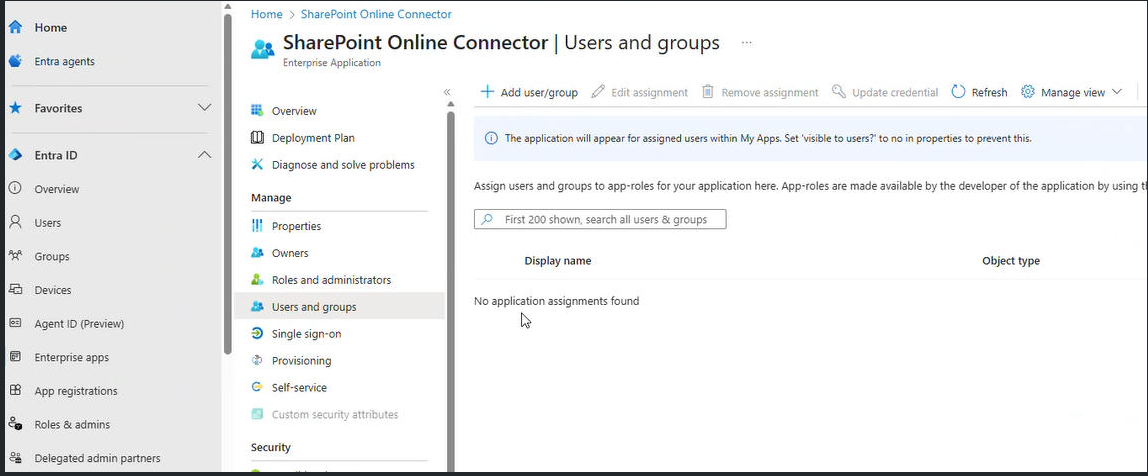
Click the Enterprise Apps tab in the left-hand menu of the Entra Admin Center
-
Find your SharePoint Online Connector app and select it
-
Select Users and groups from the Manage menu
-
Select users or groups who will be administering the SharePoint Online Connector application