
Service Accounts are created and managed locally within Gimmal Records. They differ from the other account types because these accounts are created locally only and are not associated with the registered Identity Provider. Service Accounts are used to authenticate communication between Gimmal Records and its Connectors or Third-Party Services.
As a best practice, you should create a separate Service Account for each Connector that will be used. This will make it easier to identify a specific Connector’s related activity within the system.
Service Accounts possess a high level of rights within the system. Credentials should be kept secure.
To create a Service Account, perform the following steps:
-
Login to Gimmal Records as a user with a Master account or a System Admin account.
-
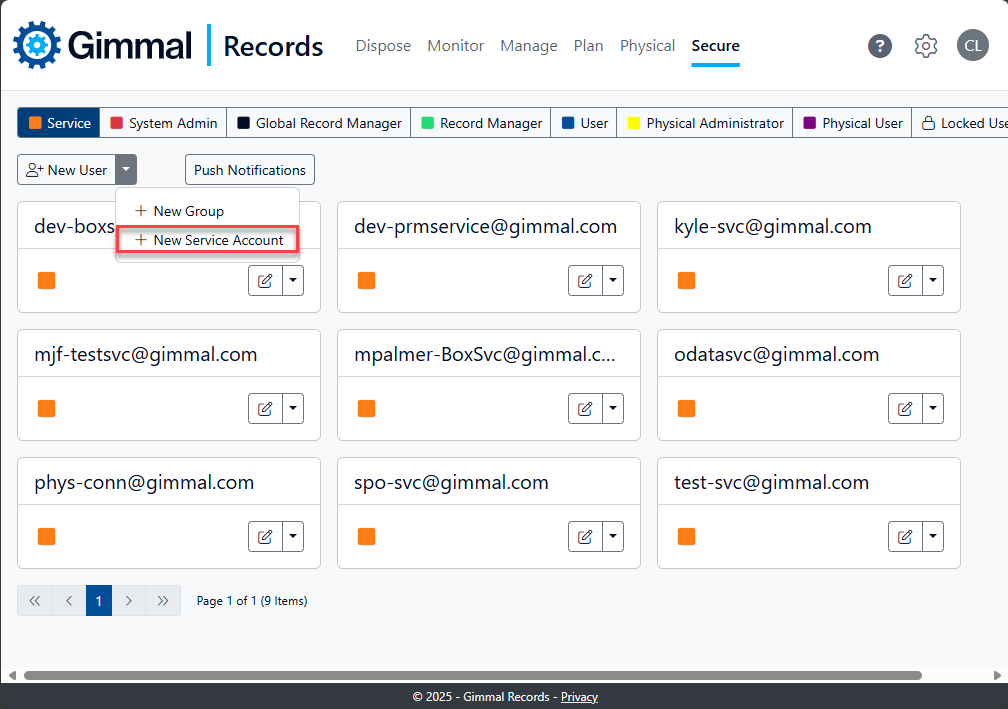
Select Secure on the Main Menu.
The Security page displays.
-
Select the New User drop-down, and then select +New Service Account.
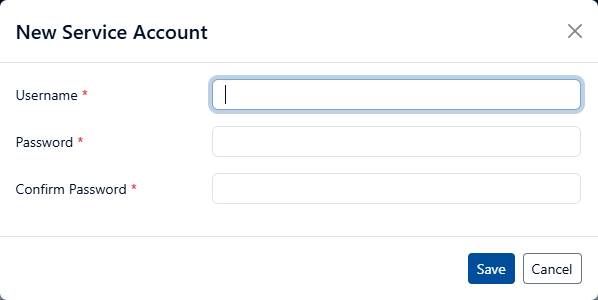
The New Service Account window opens.
-
Enter a username and password for the new account
-
Select the Save button
The Service Account username format depends on whether or not you are connecting to a Gimmal Cloud deployment for Gimmal Records or self-hosted.
-
Gimmal-Hosted Cloud {service account name}@{tenant domain} (e.g. spocservice@gimmal.com, or fscservice@companyname.com),
-
Self-Hosted Cloud: {service account name}. For more information, see Directing the Connector for specific connectors (e.g. Directing the Connector for SharePoint Server).
Service Account passwords are limited to 18 characters. While the interface may let you enter more than 18 characters, connectors will not be able to use the service account and connection errors will occur.