(6.0)Configure SharePoint Online Sites (6.1)
Overview
This guide provides step-by-step instructions for configuring SharePoint Online sites and document libraries to work with the SharePoint Online Connector for records management. After completing the installation and Azure AD setup from the previous guides, you’ll configure which sites and libraries the connector monitors and how documents are classified and managed.
Prerequisites: Before proceeding, ensure you have completed:
SharePoint Online Connector Installation (on-premise installation only)
Table of Contents
Site Registration Overview
What is Site Registration?
Site registration is the process of connecting SharePoint Online sites to the Records Management system. Once registered, the connector can:
Monitor document libraries for new and modified content
Classify documents based on configured rules
Apply retention policies and lifecycle management
Transfer records between libraries as needed
Registration Workflow
┌─────────────────────────────────────────────────────────────┐
│ 1. Access SPOC Web Administration Portal │
└────────────────┬────────────────────────────────────────────┘
│
▼
┌─────────────────────────────────────────────────────────────┐
│ 2. Browse and Select SharePoint Sites │
└────────────────┬────────────────────────────────────────────┘
│
▼
┌─────────────────────────────────────────────────────────────┐
│ 3. Register Sites (Creates Site Entry in Database) │
└────────────────┬────────────────────────────────────────────┘
│
▼
┌─────────────────────────────────────────────────────────────┐
│ 4. Configure Library Crawling (Optional Overrides) │
└────────────────┬────────────────────────────────────────────┘
│
▼
┌─────────────────────────────────────────────────────────────┐
│ 5. Start Classification Job │
└─────────────────────────────────────────────────────────────┘
Register SharePoint Sites
Step 1: Access the Sites Management Page

Log in to the SharePoint Online Connector Web application
URL format: https://<your-spoc-server>/
Use your Azure AD credentials or the administrator account
Navigate to the Sites management page
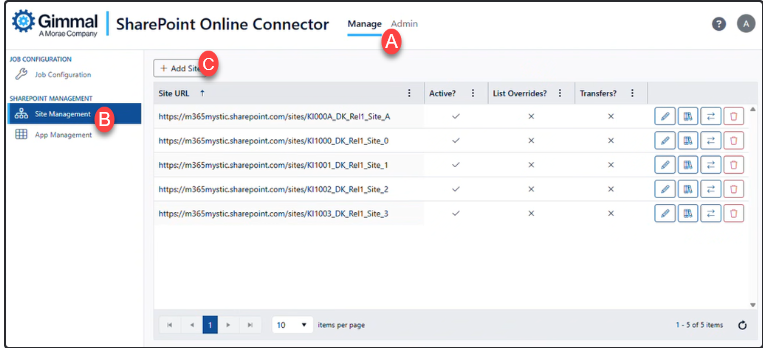
Click the Manage page in the top navigation menu
Click the Site Management tab in the left navigation menu
Currently registered sites (if any) are listed
Step 2: Add New Sites

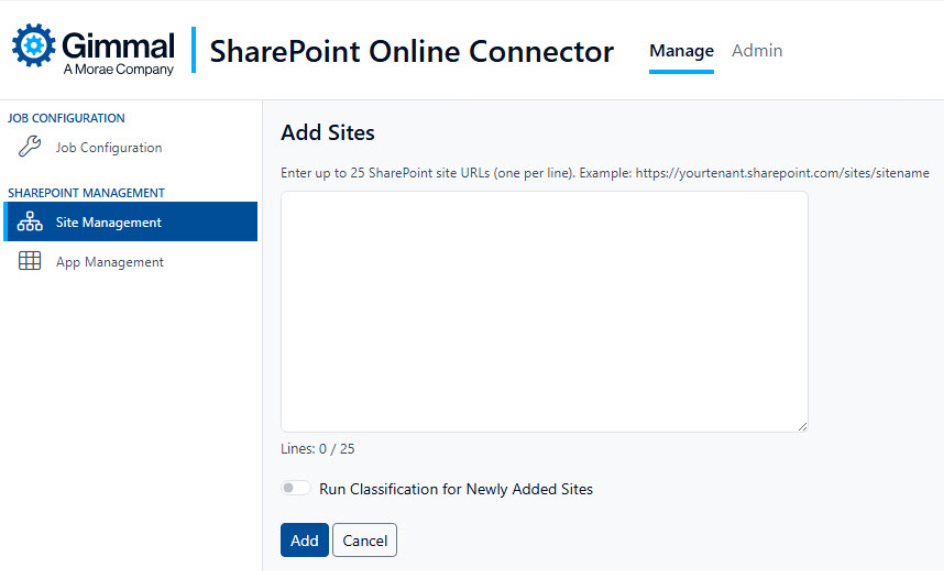
Click the Add Sites button
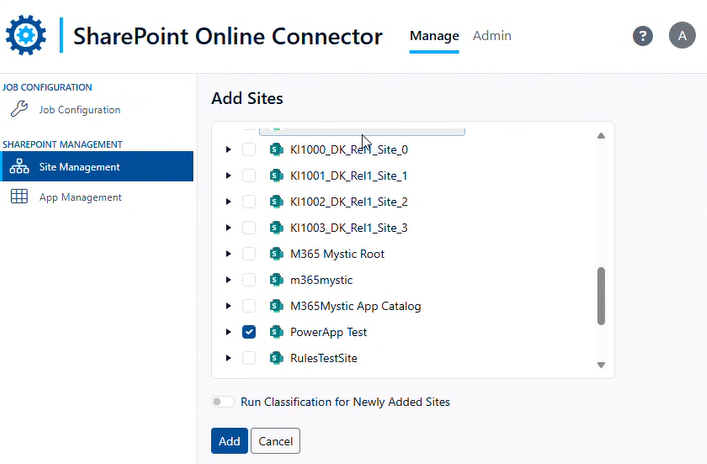
Browse the SharePoint site hierarchy
Sites are displayed in a tree structure
Expand nodes to see subsites
Select sites to register
Check the boxes next to sites you want to monitor
You can select multiple sites at once
Both site collections and subsites can be registered
Configure registration options:
Start Job Immediately: Check this to begin classification after registration
Is Active: Determines if the site is actively monitored (default: Yes)
Click Register to complete the process
Step 3: Verify Registration
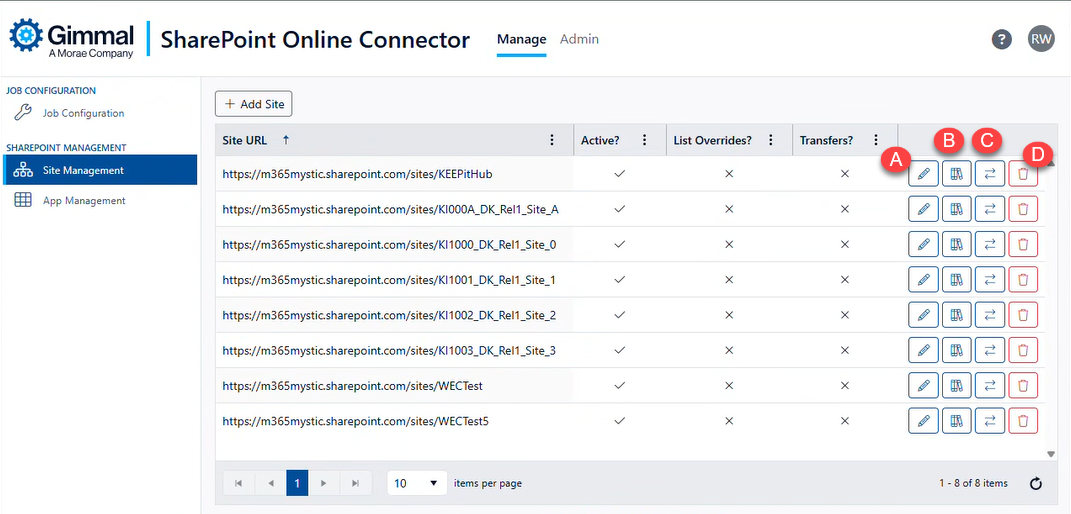
After registration, the site appears in the Site Management list with the following information:
Column | Description |
SP Host URL | The SharePoint site URL |
Is Active | Whether the site is currently being monitored |
Has List Overrides | Indicates if library-specific configurations exist |
Has Transfers | Shows if transfer configurations are defined |
Configure Library Crawling
Overview
By default, the connector crawls all document libraries in a registered site. Library crawling configuration allows you to:
Include or exclude specific libraries
Override default crawling behavior
Optimize performance by limiting scope
Step 1: Access Library Configuration

From the Site Management page, locate your registered site
Click the Libraries button for the site
The Crawled Libraries page displays
Step 2: View Available Libraries
The library configuration page shows:
Tree view of all document libraries in the site
Current override status for each library
Library metadata (name, URL, item count)
Step 3: Create Library Override
To customize crawling behavior for a specific library:
Click the Create Override button
Select the library from the tree view
Configure the override settings:
Setting | Description | Options |
Crawl This Library | Whether to include this library in crawling | Yes / No |
Include Subfolders | Crawl all folders within the library | Yes / No |
Classification Enabled | Apply classification rules to documents | Yes / No |
Save the configuration
Note: Library overrides are stored in the ListOverrideEntities database table.
Step 4: Edit or Delete Overrides
Edit: Click the Edit button next to an override to modify settings
Delete: Click the Delete button to remove the override and revert to default behavior
Default Crawling Behavior
If no override is configured for a library:
✅ All document libraries are crawled
✅ All folders within libraries are included
✅ Classification is enabled
❌ System libraries (e.g., Form Templates, Style Library) are excluded
❌ Hidden libraries (e.g., libraries that are hidden from SharePoint search results) are excluded
Example: Exclude a Library from Crawling
Scenario: You want to exclude the “Draft Documents” library from records management.
Steps: 1. Navigate to Sites → Select site → Libraries 2. Click Create Override 3. Select Draft Documents from the tree 4. Set Crawl This Library to No. 5. Click Save
Result: The connector will skip the “Draft Documents” library during classification jobs.
Content Type Mapping
Overview
Content type mapping connects SharePoint content types and metadata to Records Manager record classes. This enables automatic classification based on document properties.
How Content Type Mapping Works
┌──────────────────────────────────────────────────────────────┐
│ SharePoint Document with Content Type & Metadata │
└────────────────┬─────────────────────────────────────────────┘
│
▼
┌──────────────────────────────────────────────────────────────┐
│ SPOC Extracts Metadata and Content Type Properties │
└────────────────┬─────────────────────────────────────────────┘
│
▼
┌──────────────────────────────────────────────────────────────┐
│ Classification Rules in Records Manager: Evaluate Metadata │
└────────────────┬─────────────────────────────────────────────┘
│
▼
┌──────────────────────────────────────────────────────────────┐
│ Document Classified to Matching Record Class │
└──────────────────────────────────────────────────────────────┘
Available SharePoint Tokens
The connector extracts the following metadata tokens for classification:
Standard Tokens
Token | Description | Example |
{URI} | Full document URL | https://contoso.sharepoint.com/sites/HR/Shared Documents/Policy.docx |
{REPOSITORY} | Repository identifier | SharePoint Online |
{FILE} | File name | Policy.docx |
{FILESIZE} | File size in bytes | 524288 |
{CREATED} | Creation date/time | 2024-01-15 10:30:00 |
{MODIFIED} | Last modified date/time | 2024-03-20 14:45:00 |
{FOLDER} | Folder path | /sites/HR/Shared Documents |
SharePoint-Specific Tokens
Token | Description | Example |
{SPLIBRARY} | Library name | Shared Documents |
{SPSITEURL} | Site collection URL | https://contoso.sharepoint.com |
{SPWEB} | Web/subsite name | HR |
{SPWEBURL} | Full web URL | https://contoso.sharepoint.com/sites/HR |
{SPTITLE} | Document title property | Employee Handbook |
{SPCONTENTTYPE} | Content type name | Policy Document |
{SPFOLDERURL} | Folder URL | https://contoso.sharepoint.com/sites/HR/Shared Documents/Policies |
{SPMODIFIED} | Modified date | 2024-03-20 |
Content Type Column Tokens
Any custom column from the SharePoint content type can be used as a token:
Format: {ColumnInternalName}
Example: {Department}, {DocumentStatus}, {ApprovalDate}
Transfer Configuration
Overview
Transfer configuration enables automatic movement of records between SharePoint libraries based on lifecycle phase transitions. This is useful for:
Archiving records to a separate library
Moving records through approval workflows
Segregating records by retention phase
How Transfers Work
┌──────────────────────────────────────────────────────────────┐
│ Record Reaches Specific Lifecycle Phase │
└────────────────┬─────────────────────────────────────────────┘
│
▼
┌──────────────────────────────────────────────────────────────┐
│ Transfer Configuration Triggers │
└────────────────┬─────────────────────────────────────────────┘
│
▼
┌──────────────────────────────────────────────────────────────┐
│ Document Moved to Destination Library │
└────────────────┬─────────────────────────────────────────────┘
│
▼
┌──────────────────────────────────────────────────────────────┐
│ Record URI Updated in Records Manager │
└──────────────────────────────────────────────────────────────┘
Important: Transfers are move operations, not copies. The document is removed from the source library and placed in the destination library.
Step 1: Access Transfer Configuration
From the Sites page, locate your registered site
Click the Transfers button (🔄 icon) for the site
The Transfer Configuration page displays
Step 2: Create Transfer Configuration
Click the Create Transfer button
Configure the transfer settings:
Setting | Description | Example |
Record Class | The record class that triggers the transfer | HR Policies |
Lifecycle Phase | The phase that triggers the transfer | Archive |
Destination Library URL | Full URL to the destination library | https://contoso.sharepoint.com/sites/Archive/Documents |
Retain Directory Structure | Preserve folder hierarchy in the destination | Yes / No |
Save the configuration
Step 3: Configure Retention Settings in Records Manager
For transfers to work, you must configure retention settings in Records Manager:
Open Gimmal Records Manager Administration
Navigate to the record class (e.g., “HR Policies”)
Configure retention schedule with lifecycle phases
Add a phase that matches your transfer configuration (e.g., “Archive”)
Set the trigger for the phase (e.g., “3 years after creation”)
Example Transfer Configuration
Scenario: Move HR policy documents to an archive library after 3 years.
Records Manager Configuration: - Record Class: HR Policies - Retention Schedule: - Phase 1: Active (0-3 years) - Phase 2: Archive (3+ years)
SPOC Transfer Configuration: - Record Class: HR Policies - Lifecycle Phase: Archive - Destination Library URL: https://contoso.sharepoint.com/sites/HRArchive/Shared Documents - Retain Directory Structure: Yes
Result: When an HR policy document reaches 3 years old, it automatically moves to the archive library while preserving its folder structure.
Transfer Configuration Options
Retain Directory Structure
Yes: Recreates the source folder path in the destination library
Source: /sites/HR/Shared Documents/Policies/2021/Policy.docx
Destination: /sites/Archive/Documents/Policies/2021/Policy.docx
No: Places all documents in the root of the destination library
Source: /sites/HR/Shared Documents/Policies/2021/Policy.docx
Destination: /sites/Archive/Documents/Policy.docx
Verification and Testing
Step 1: Verify Site Registration
Navigate to Sites in the SPOC web interface
Confirm your site appears in the list
Check the Is Active status is Yes
Verify the SP Host URL is correct
Step 2: Test Library Discovery
Click the Libraries button for your site
Verify all expected document libraries appear in the tree view
Check that the library metadata (item counts) is accurate
Confirm that any configured overrides are displayed correctly
Step 3: Run a Classification Job
Navigate to Sites
Click the Start Job button for your site
Monitor the job progress
Review the job log for errors or warnings
Expected Results: - Job completes successfully - Documents are classified to appropriate record classes - No errors in the job log
Step 4: Verify Classification Results
Open Gimmal Records Manager
Navigate to the target record class
Verify documents from SharePoint appear in the record class
Check that metadata is correctly populated
Confirm document links point to SharePoint
Step 5: Test Transfer Configuration (If Configured)
Create a test document in the source library
Classify the document
Trigger the lifecycle phase transition
Verify that the document moves to the destination library
Check that the record URI is updated in Records Manager
Confirm folder structure is preserved (if configured)
Deploy SharePoint Framework (SPFx) App Package
Overview
The SharePoint Online Connector includes a custom SharePoint app that adds record management functionality to your SharePoint sites. This guide explains how the app works and important considerations for managing it across your organization.
What is the Manage Record app?
The Manage Record app is a custom SharePoint app that: - Adds record management buttons and options to document libraries and lists - Integrates with your Records Manager system - Appears automatically on list and library pages when installed
Installation Options
When uploading the SharePoint Online Connector app to your tenant, you have two deployment choices:
Option 1: Enable for All Sites (Tenant-Wide)
✅ Pros: Automatically available on every site in your organization
✅ Pros: No need to install individually on each site
✅ Pros: New sites automatically get the manage record functionality
❌ Cons: Cannot be removed from individual sites
❌ Cons: Appears on ALL sites, even where records management isn’t needed
Option 2: Manual Installation Per Site
✅ Pros: Full control over which sites have the functionality
✅ Pros: Can be removed from individual sites as needed
❌ Cons: Must be manually installed on each site where needed
❌ Cons: New sites won’t automatically have the manage record functionality
Important: Understanding Tenant-Wide Deployment
If you chose “Enable for All Sites” during installation:
What This Means
The app is automatically active on every site in your SharePoint Online tenant
Users will see record management options in document libraries across all sites
The app does NOT appear in individual sites’ “Site Contents” or app lists
It runs automatically in the background
Limitations
You cannot remove the app from individual sites
You cannot disable it for specific sites through SharePoint settings
Installation
The connector dynamically generates tenant-specific SPFx packages:
Generate Package: In the web interface, navigate to App Management
Download Package: The system will:
Configure your tenant-specific configuration (RemoteUrl, Tenant Context)
Generate a customized package named {tenant-name}-sponline-spfx.sppkg
Deploy to SharePoint:
Access your SharePoint App Catalog site
Navigate to “Apps for SharePoint”
Upload the generated .sppkg file
Deploy the app to make it available across your tenant
If desired, check the “Make this solution available to all sites in the organization” box. See notes in Installation Options above for details on this option.
SharePoint Integration:
Navigate to a SharePoint Online document library
Verify “Manage Record” buttons appear on documents
Test document capture and records declaration
How to Remove or Disable
If you need to remove the Manage Record app from your organization:
Complete Removal:
Go to SharePoint Admin Center
Navigate to “More features” → “Apps” → “App Catalog”
Find the “SharePoint Online Connector” app
Remove it from the catalog
Result: Removes from ALL sites immediately
Temporary Disable:
In the App Catalog, you can disable the app
Result: Disables on ALL sites temporarily
Can be re-enabled later
Troubleshooting
Issue: Site Registration Fails
Symptoms: - Error message when attempting to register a site - Site does not appear in the Sites list
Possible Causes: 1. Invalid site URL 2. Insufficient permissions 3. Network connectivity issues 4. Azure AD authentication failure
Solutions:
✅ Verify the site URL:
✅ Check application permissions: - Ensure the Azure AD application has Sites.Read.All permission - Verify admin consent has been granted - Check the application is not disabled
✅ Review SPOC logs: - Check <Install Root>\SharePoint Online Connector\Logs\ for error details - Look for authentication or authorization errors
Issue: Libraries Not Appearing
Symptoms: - Library tree view is empty - Expected libraries are missing
Possible Causes: 1. Site not fully synchronized 2. Permissions issue 3. The library is a system library (these are excluded by default)
Solutions:
✅ Check library type: - System libraries (Form Templates, Style Library) are excluded by default - Only document libraries are shown
✅ Verify permissions: - Ensure the application has access to the site - Check SharePoint site permissions
Issue: Transfer Configuration Not Working
Symptoms: - Documents do not move when lifecycle phase changes - Transfer errors in logs
Possible Causes: 1. Destination library does not exist 2. Insufficient permissions on destination 3. Lifecycle phase name mismatch 4. Transfer configuration not saved correctly
Solutions:
✅ Verify destination library exists:
✅ Check lifecycle phase name: - Ensure the phase name in SPOC exactly matches Records Manager - Phase names are case-sensitive - Check for extra spaces or special characters
✅ Verify permissions: - Application must have write access to the destination library - Check SharePoint permissions on both source and destination
✅ Review transfer logs: - Check SPOC logs for transfer operation details - Look for permission denied or not found errors