
The SharePoint Online Connector (SPOC) Service is a Windows Service that manages the lifecycle of files for any SharePoint Online Site that has been registered from the SharePoint Online Connector Web. Without this component, files contained within a Site cannot be managed by Gimmal Records.
Installing the SPOC Service
To install SharePoint Online Connector Services, perform these steps:
-
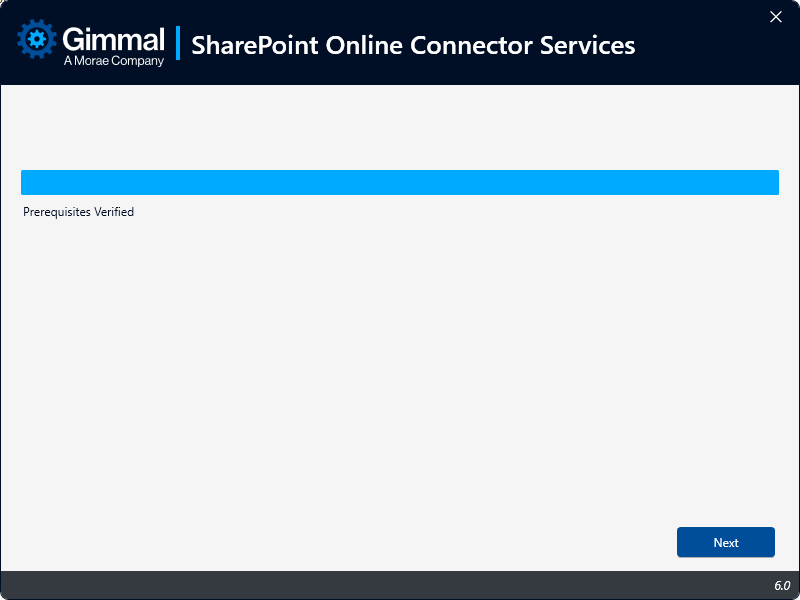
On the SharePoint Online Connector installer, click Install to the right of the SharePoint Online Connector Services option. The first screen that displays is the Check for Prerequisites. This screen validates the following information before allowing the installation to proceed:
-
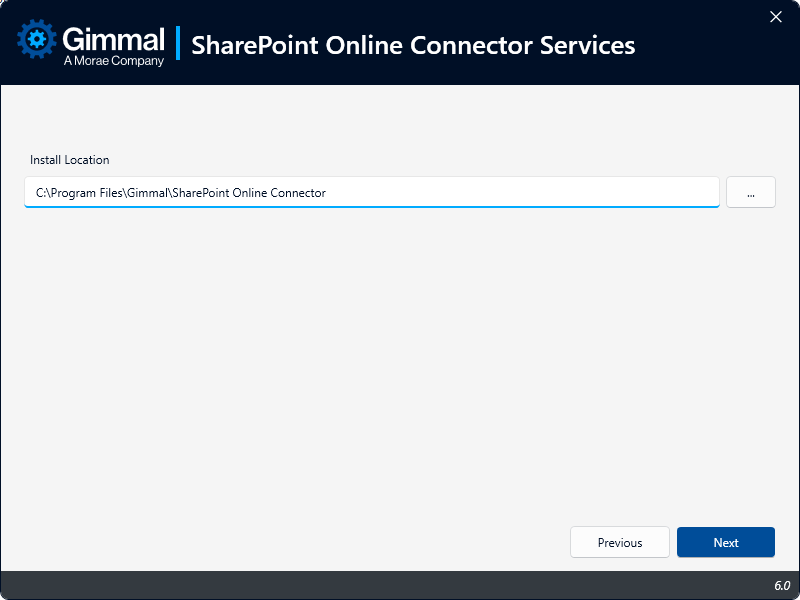
Click Next, and the installation location screen displays, which determines where the connector will be installed.
-
Leave the installation path as the default, or to change it, click the ... icon next to the installation location field, select the desired installation location, and then click Next. The Service Settings screen displays
-
Configure the settings for the SharePoint Online Connector Services.
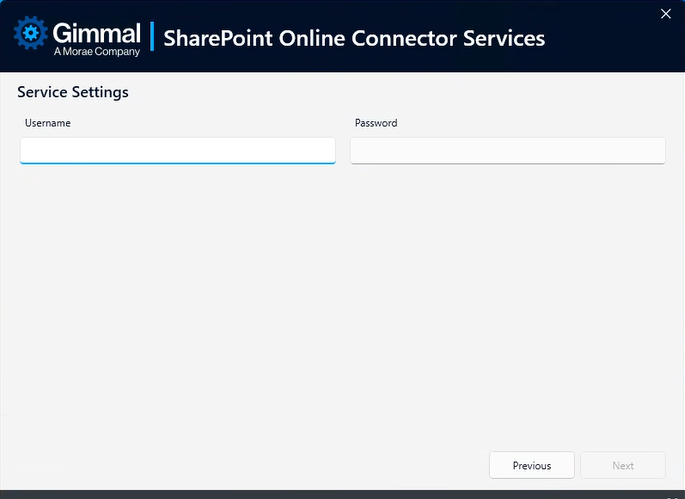
When SharePoint Online Connector Services is installed, a Windows Service is created. The following settings specify which user account to use to execute this Windows Service.
-
Username (Ex. DOMAIN\Username)
-
Password
The user account should be a domain account and must have the following file system permissions, which are granted during installation:
-
Read/Write: %Install Path%\Logs
-
-
Click Next to go to the Database Settings screen, where you will configure the Database that will be used by the SharePoint Online Connector. Enter the following information to determine the connection information that will be used by the SharePoint Online Connector to connect to SQL Server:
-
Database Server: The name of the SQL Server Install (ex., SERVERNAME\InstanceName)
-
Database Name: The name of the actual SQL Server Database
-
(Optional) Use SQL Authentication: Specifies that the connection information should use SQL Authentication with the Username and Password indicated below
-
Username: The SQL Server username to use if SQL Authentication is specified
-
Password: The SQL Server password to use if SQL Authentication is specified
-
Note: If SQL Authentication is not specified, the connection information will use Windows Authentication by specifying a trusted connection. This means that the Application Pool account will be used to connect to SQL Server; therefore, this account will need the following database permissions. If SQL Authentication is specified, the SQL user will also require the following permissions:
-
db_datareader
-
db_datawriter
-
GRANT EXECUTE on all Stored Procedures
-
GRANT EXECUTE on all Scalar User Defined Functions
-
GRANT SELECT on all Table and Inline User Defined Functions
-
-
-
Automatically Create Database
-
If specified (checked), the installation will automatically attempt to create the database using the Database Server and Database Name indicated. The appropriate account will also be automatically granted the appropriate rights to this database. This option requires that the current user has permission to create databases and manage security in the SQL Server instance indicated.
-
If not specified(i.e., unchecked), the installation will configure connection information but will not attempt to create the database. In this case, you will need to leverage the SQL Script at the following location to manually create the database in the SQL Server instance indicated. You will also need to manually configure security as indicated above.
-
%Install Path%\Web\Sql\RecordLion.RecordsManager.SPOnline.sql
-
-
-
-
Click Next to go to the App Registration Settings screen, where you will enter the Client ID and Client Secret that were generated during App Registration. Copy the details exactly.
-
Click Next. The Installation screen displays. The progress bar indicates the current state of the installation.
-
When the application finishes installing, click Next to continue to the Finish screen. This screen indicates that the application was installed successfully.
-
Click Finish to close the installer screen.