
Overview
The SharePoint Online Connector (SPOC) includes a custom SharePoint app that adds the ‘Manage Record’ option to your document context menu. This provides an easy way to manage the document record in the Gimmal Records interface.
This guide explains how to add the app to your sites and important considerations for managing the app across your organization.
What is the SharePoint Online Connector App?
This is a custom SharePoint app that:
-
Adds ‘Manage Record’ buttons and options to document libraries
-
Integrates with Gimmal Records, allowing direct access to manage the record for the selected document
App Deployment Considerations
When deploying the SharePoint Online Connector app to your tenant, you have two deployment options:
Option 1: Manual Installation Per Site
Pros
-
✅ Full control over which sites have the functionality
-
✅ Can be removed from individual sites as needed
Cons
-
❌ Must be manually installed on each site where needed
-
❌ New sites won’t automatically have the manage record functionality
Option 2: Enable for All Sites (Tenant-Wide)
Pros
-
✅ Automatically available on every site in your organization
-
✅ No need to install individually on each site
-
✅ Pros: New sites automatically get the manage record functionality
Cons
-
❌ Cannot be removed from individual sites
-
❌ Appears on ALL sites, even where records management isn’t needed
Understanding Tenant-Wide Deployment
What This Means
-
The app is automatically active on every site in your SharePoint Online tenant, whether or not it is registered in SPOC.
-
Users will see the ‘Manage Record’ options in document libraries across all sites
-
The app does NOT appear in individual sites’ app lists or Site Contents
Limitations
-
You will not be able to remove the app from individual sites
-
You will not be able to disable the app for specific sites through SharePoint settings
Installation
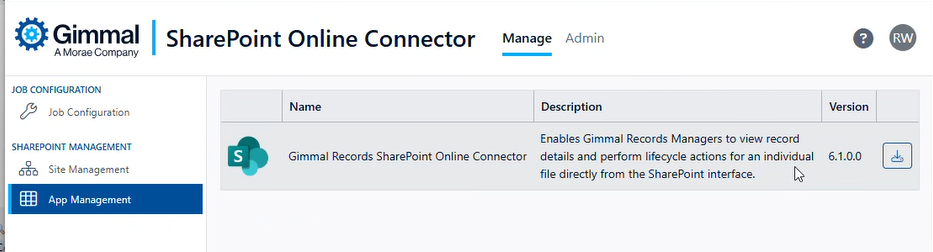
The SharePoint Online Connector App is available in the SPOC manager web under ‘App Management’
-
Download Package: Use the download button to download the app package locally (in .sppkg format).
-
Deploy to SharePoint:
-
Access your SharePoint App Catalog site
-
Navigate to “Apps for SharePoint”
-
Click the ‘Upload’ button
-
Select the file that you downloaded (.sppkg format) in Step 1 and click OK
-
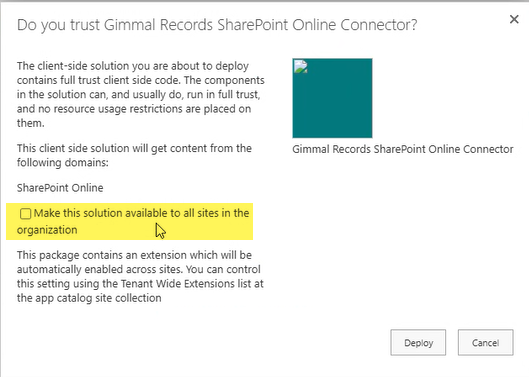
A validation box will appear. If desired, check the “Make this solution available to all sites in the organization” box. See notes in Installation Options above for details on this option.
-
Click ‘Deploy’ to complete the installation of the app package
-
If you did not check the ‘Make this solution available to all sites’, you will need to manually add the app to each of your sites you wish to manage. To do so:
-
Navigate to a site where you wish to add the app
-
Select Site Contents from the left navigation menu
-
Click New | App from the top menu
-
Pick the ‘Gimmal Records SharePoint Online Connector’ App from the available options and click ‘Add.’
-
Once the app is added, navigate to site contents and verify the app is listed as ‘Gimmal Records SharePoint Online Connector’ and available for use
-
Verify the ‘Manage Record’ option appears on the context menu for a document on the selected site
How to Remove the App
If you need to remove the app from your organization:
-
If Deployed Tenant-Wide
-
Access your SharePoint App Catalog site
-
Navigate to “Apps for SharePoint”
-
Find the “Gimmal Record SharePoint Online Connector” app
-
Delete it from the catalog by using the ‘Delete’ option on the context menu
Note: This removes the ‘Manage Record’ button from ALL sites immediately
-
-
If Deployed Site by Site
-
Remove the app from each site:
-
Navigate to each site where the app is deployed
-
Delete the app from the Site Contents window
-
Ensure the app is removed from the recycle bin
-
-
Follow the steps for ‘If Deployed Tenant Wide’ to remove the app from the App catalog
-
Upgrade Notes
When upgrading the app from a version previous to 6.1, you will need to remove the previous version of the app.