
Please contact your SharePoint Online or Microsoft 365 administrator for help with the steps below.
You cannot configure the SharePoint Online Connector to work with two different instances of Gimmal Records. Provide distinct Microsoft 365 tenants to work with two different instances of Gimmal Records.
Creating the SharePoint App Principal
For the SharePoint Online Connector (SPOC) to be able to connect to SharePoint Online using OAuth, the app identity needs to be created with Microsoft Azure Access Control Service (ACS) and the SharePoint App Management Service of the tenancy. To register the app, perform the following steps:
-
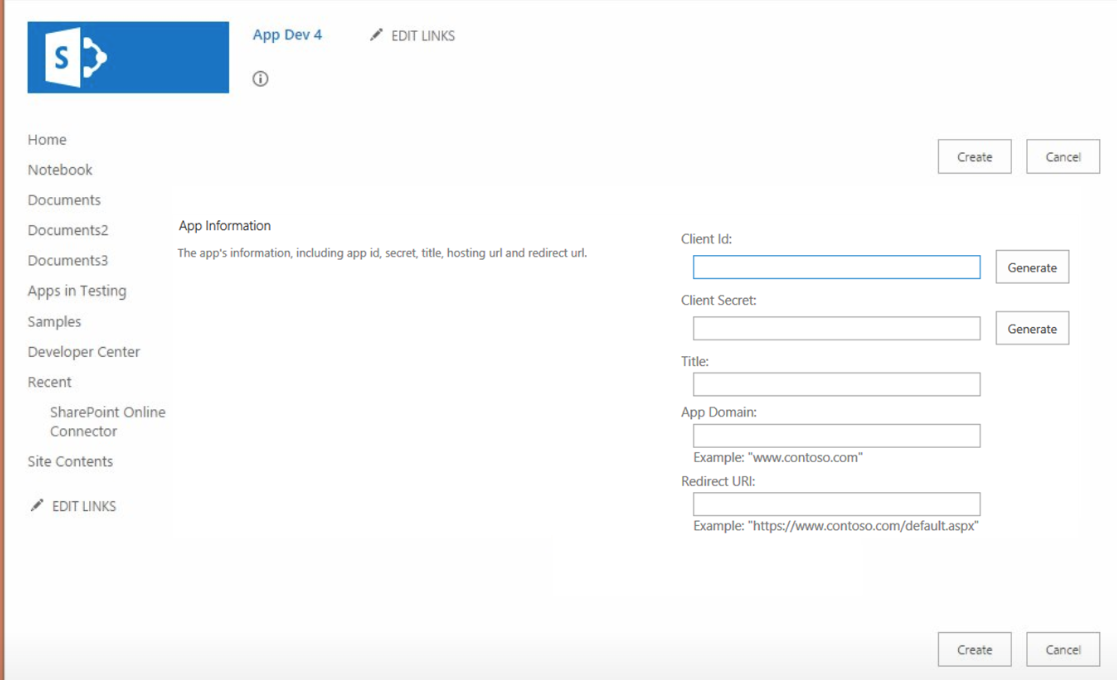
Navigate to the following location: http://{your_sponline_url_to_any_sitecollection}/_layouts/15/appregnew.aspx
A screen similar to the following page displays. This is where you will provide the necessary configuration information described below.
-
Client ID: Click Generate to automatically populate this value.
-
Client Secret: Click Generate to automatically populate this value.
-
Title: Enter the value of “SharePoint Online Connector”.
-
App Domain: Enter the authority (DNS name) and port number portions of the exact URL to where the SharePoint Online Connector Web will be accessed: for example, spoc.domain.com:8084. If you are using the default HTTPS port (443) for your connector web, then you can omit it from the App Domain; for example, spoc.domain.com.
Redirect URL: Enter the exact, full URL to where the SharePoint Online Connector Web will be accessed; for example, https://spoc.domain.com:8084. If you are using the default port for HTTPS (443) for your connector web, then you can omit it from the Redirect URL; for example,https://spoc.domain.com.
SharePoint Online requires the Redirect URL to be secured via HTTPS, or you will not be able to successfully register the app. Unsecured (HTTP) redirect URLs are not supported.
Prior to clicking Create in the next step, copy the Client ID and Client Secret to a file because they will be used when installing the Web and Services components of the SharePoint Online Connector. This file must be stored in a secure location so it can be referenced for future upgrades.
-
Make note of the Client ID and Client Secret in a secure location, as they will be used when installing the Web and Services components of the SharePoint Online Connector.
Failure to make note of the Client ID and Client Secret will require you to regenerate them before installing the connector.
-
Click Create to complete the registration process.
Following the registration process, the Client Secret that is generated is only valid for one year, and will need to be replaced by generating a new Client Secret for the corresponding Client ID. For information on how to renew a client secret, see Renewing a Client Secret
Creating the SharePoint App Catalog
To enable an App Package to be deployed to SharePoint Online, you must create the App Catalog where App Packages will be hosted and made available to each SharePoint Online Web. If this has not already been done for your tenancy, perform the following steps:
-
Open the SharePoint Online Admin Center.
-
Select “apps” from the left menu.
-
Click App Catalog, then click OK to accept the default option.
-
On the Create App Catalog Site Collection page, specify the Title and Address for your App Catalog, as well as any other options indicated.
-
Click OK to create the App Catalog.