
Found under Settings, these views allow administrators to set application-level options. To navigate to these preferences, first click the gear icon (1), then choose ‘Settings’ (2).
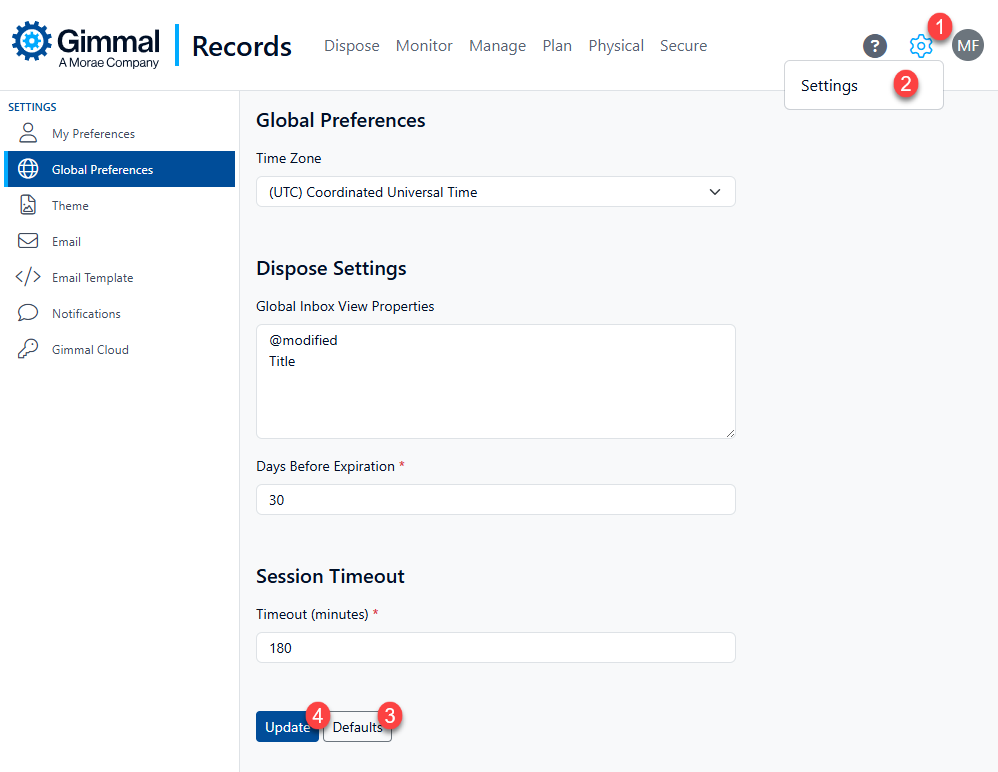
To restore the default options, click Defaults (3). To save user adjusted options, click Update
Clicking ‘Defaults' does not just restore options to the system defaults, it saves as well. Be judicious when using this button!
Global Preferences
Time Zone
Times are stored in the system as GMT times and are converted within the user interface to the individual users' personal preference. As an administrator, you can set the default time zone for all users.
-
Select Settings from the Main Menu
-
Select Global Preferences
-
Set the Time Zone accordingly
Dispose Settings
Global Inbox View Properties
Each Record Class can have specific properties shown as columns when using Views on the Inbox. As an administrator, you can set the global default view properties for all Record Classes. Individual users also can set Inbox View Properties applicable only to their view.
To have default inbox view properties appear, enter a valid property, one per line.
Days Before Expiration
Enter a numeric value to indicate the number of days before expiration that a record should be included in the inbox. Using a '0' (zero) value will limit the inbox to expired items only.
The default value is 30 days.
Session Timeout
Timeout (Minutes)
Administrators can set the number of minutes that a session can remain open.
Theme
You can change the theme of the application by selecting Light or Blue. This affects the current user only.
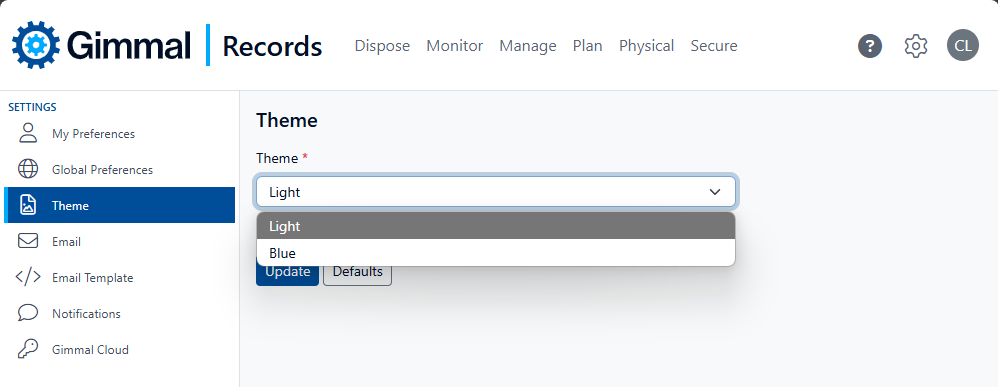
To restore the default theme, click the Defaults button. Remember, the Defaults button also saves.